

5.20 Context Compaction
📝 Course Notes
Key knowledge points from this lesson:
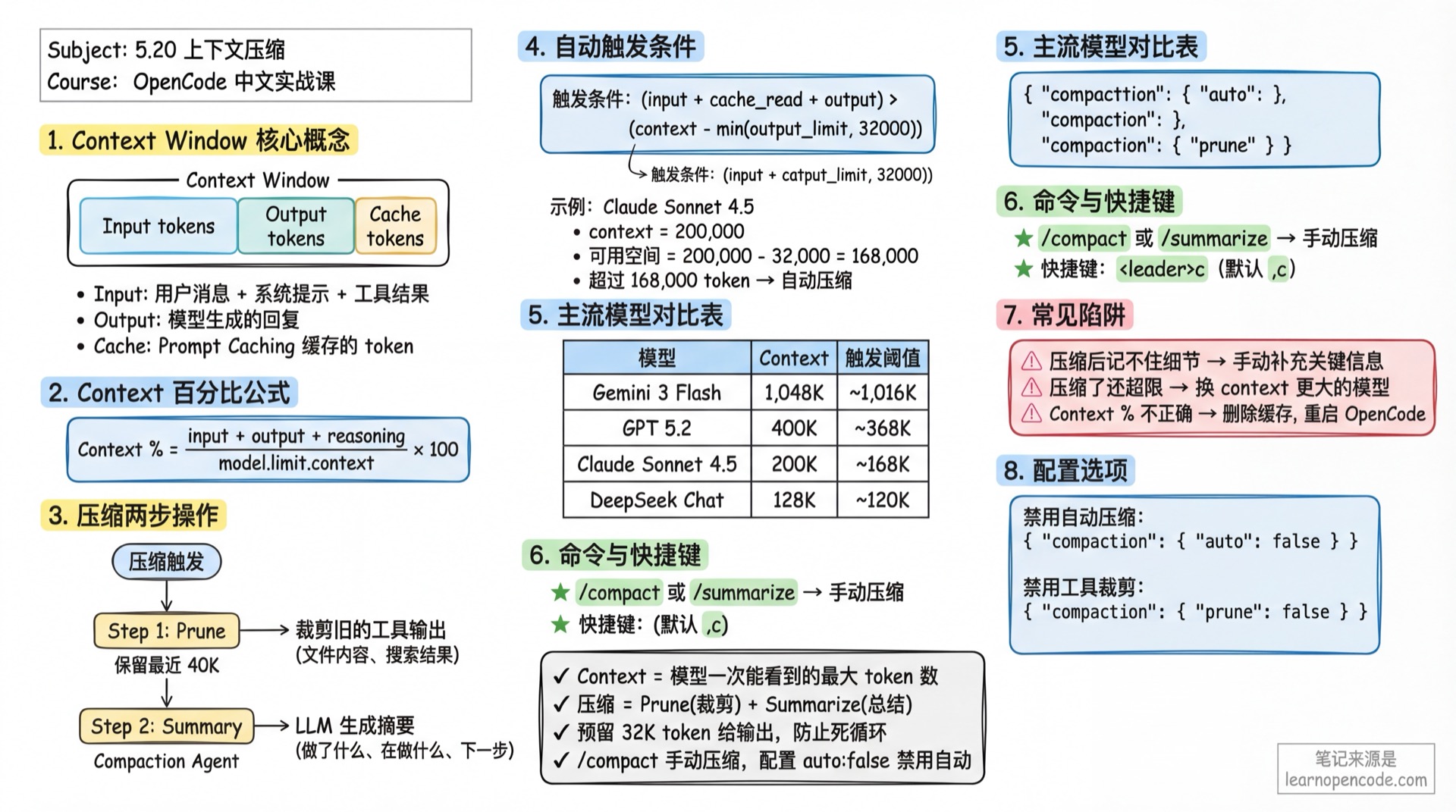
When conversations get too long, OpenCode automatically compacts historical messages to free up space for continued dialogue.
What You'll Be Able to Do
- Understand what context compaction is and why it's necessary
- Interpret what "Context X% used" on the TUI actually means
- Master when and how to use the
/compactcommand - Configure auto-compaction behavior to control when it triggers
- Customize model context window sizes
Your Current Struggles
- Mid-conversation, suddenly getting "context overflow" errors
- Not understanding how "Context 85% used" on the TUI sidebar is calculated
- Wanting to manually clean up historical messages but afraid of losing important context
- Wondering why others can have longer conversations with the same model
When to Use This Technique
- When you need: Long debugging or refactoring sessions with accumulated history
- And you don't want: Being forced to restart conversations due to context limits
- When model reports:
Error: Request too large for context window
Core Concepts
What is Context Window?
Every LLM model has a Context Window that limits the maximum number of tokens the model can "see" at once. Exceeding this limit means the model cannot process new requests.
Key Concepts:
- Context: Total context window size
- Input tokens: Text sent to the model (user messages + system prompts + tool call results)
- Output tokens: Model-generated responses
- Cache tokens: Cached tokens when using Prompt Caching
What Does Compaction Do?
OpenCode's compaction mechanism includes two actions:
Prune: Automatically clears old tool call outputs
- Retains the most recent 40,000 tokens of tool outputs
- Clears earlier tool outputs (like file contents, search results)
- Avoids deleting skill tool outputs (usually containing important state)
Summarize: Uses LLM to generate a summary
- Sends historical conversation to a dedicated compaction agent
- Generates a detailed summary including: what was done, what's being done, next steps
- Replaces original historical messages with the summary, significantly reducing token usage
Deep Dive into Principles
How is Context Percentage Calculated?
The "Context X% used" displayed on the TUI right sidebar uses this formula:
Context Percentage = (input + output + reasoning + cache.read + cache.write) / model.limit.context * 100Included token types:
input: Tokens input to the modeloutput: Tokens output by the modelreasoning: Reasoning model's thinking process (like Claude Thinking)cache.read: Tokens read from cachecache.write: Tokens written to cache
When Does Auto-Compaction Trigger?
Core judgment function (source: src/session/compaction.ts:32-48):
Trigger condition: token_count >= (input_limit - reserved)
Where reserved = min(20000, model_max_output)
Formula breakdown:
- Calculate total used tokens:
input + output + cache.read + cache.write - Calculate reserved space (reserved): defaults to
min(20,000, model max output) - Calculate available space:
input_limit - reserved - When used amount >= available space, auto-compaction triggers
Example calculation:
- Model: Claude Sonnet 4.5 (context = 200,000, input = 200,000, output = 64,000)
- Reserved space = min(20,000, 64,000) = 20,000
- Available space = 200,000 - 20,000 = 180,000
- Compaction triggers when
token_count >= 180,000
Why need reserve token buffer? (v1.1.57 improvement)
- Ensures input window has enough space for compaction operation
- Compaction itself needs to send summary requests, requiring reserved space
- More reliable compaction, fewer "compaction failed" situations
Compaction Process Details
Step 1: Prune Tool Outputs
// Retain last 40K tokens of tool outputs
PRUNE_PROTECT = 40_000
PRUNE_MINIMUM = 20_000- Traverse messages from end to beginning
- Accumulate tool output tokens until reaching 40,000
- Mark tool outputs beyond this as
compacted - Only execute if cleanup amount > 20,000 (avoid trivial cleanups)
Step 2: Call Compaction Agent
- Creates a hidden agent (name:
compaction) - Disables all tool permissions (
PermissionNext.fromConfig({ "*": "deny" })) - Sends summary prompt:
"Provide a detailed prompt for continuing our conversation above.
Focus on information that would be helpful for continuing the conversation,
including what we did, what we're doing, which files we're working on,
and what we're going to do next considering new session will not have access to our conversation."
Step 3: Replace Historical Messages
- Generated summary is marked as
summary: true - Original historical messages are replaced, but summary appears in conversation history
- Subsequent conversations only see the summary, not complete original messages
Popular Model Context Windows
Data Source
OpenCode fetches the latest model data from https://models.dev/api.json remotely (source: src/provider/models.ts), updating local cache on each startup.
Common Model List
| Model | Provider | Context | Output | Trigger Threshold* |
|---|---|---|---|---|
| Claude Sonnet 4.5 | Anthropic | 200,000 | 64,000 | ~168,000 |
| Claude Opus 4.5 | Anthropic | 200,000 | 64,000 | ~168,000 |
| Gemini 3 Pro | 1,000,000 | 64,000 | ~968,000 | |
| Gemini 3 Flash | 1,048,576 | 65,536 | ~1,016,536 | |
| GPT 5.2 Pro | OpenAI | 400,000 | 128,000 | ~368,000 |
| GPT 5.2 | OpenAI | 400,000 | 128,000 | ~368,000 |
| GLM 4.7 | ZhipuAI | 204,800 | 131,072 | ~172,728 |
| DeepSeek Chat | DeepSeek | 128,000 | 8,192 | ~119,808 |
*Trigger threshold = context - min(output, 32,000), for reference only, actual values from models.dev
Key Findings:
- Gemini 3 Flash has the largest context window (~1M), suitable for super-long document analysis
- DeepSeek Chat has smaller context (128K), more likely to trigger compaction
- GPT 5.2 series has large output limits (128K), ample reserved space
Follow Along
Step 1: View Current Context Usage
In the TUI right sidebar, find the Context area:
Context
145,234 tokens 73% used
This indicates the current conversation uses 145,234 tokens, occupying 73% of the model's context window.
What you should see:
- If using GPT 5.2 (context = 400,000), the percentage displayed is moderate
- If using Gemini 3 Flash (context = 1,048,576), the percentage will be low
Step 2: Manually Trigger Compaction
When you feel the conversation is too long and want to manually compact:
Method 1: TUI Command In the input box, type:
/compactOr alias:
/summarizeMethod 2: Keyboard Shortcut Press <leader>c (default is ,c)
What you should see:
- Input box shows
Compacting...prompt - Model generates a detailed summary
- After compaction, conversation history is replaced with summary content
Step 3: Observe Compaction Results
After compaction, check the Context percentage:
Context
45,678 tokens 23% used
Compared to 73% before compaction, you'll see a significant drop in token usage.
What you should see:
- Old tool call results are cleared (like file read contents)
- A detailed conversation summary is retained
- When continuing the conversation, the model works based on the summary
Checklist ✅
- [ ] Understand the Context percentage calculation formula
- [ ] Can manually trigger
/compactcommand - [ ] Context percentage significantly drops after compaction
- [ ] Model can continue conversation based on summary
Advanced Configuration
Configuration File Locations
OpenCode supports multi-level configuration, by priority from high to low:
| Location | Priority | Description |
|---|---|---|
./opencode.json | High | Project-level config (recommended for project-specific settings) |
~/.config/opencode/opencode.json | Low | Global config (recommended for personal preferences) |
OPENCODE_CONFIG env variable | Highest | Custom config file path |
OPENCODE_CONFIG_DIR env variable | - | Custom config directory |
Configure Reserved Space (v1.1.57新增)
Compaction reserves some token space when triggering to ensure the compaction operation itself can proceed smoothly:
opencode.json
{
  "compaction": {
    "reserved": 30000
  }
}
Parameter description:
- Default value:
min(20000, model max output) - Purpose: Controls when to trigger compaction (lead time)
- Scenario: If compaction frequently fails, increase this value
Disable Auto-Compaction
If you don't want OpenCode to automatically compact, set in config file:
opencode.json
{
  "compaction": {
    "auto": false
  }
}
Or via command line:
OPENCODE_DISABLE_AUTOCOMPACT=true opencodeDisable Tool Output Pruning
Prune automatically clears old tool outputs. If you want to retain all tool outputs:
opencode.json
{
  "compaction": {
    "prune": false
  }
}
Or via command line:
OPENCODE_DISABLE_PRUNE=true opencodeCustomize Model Context Limits
If you want to modify a model's context or output limits (e.g., trigger compaction earlier):
opencode.json
{
  "provider": {
    "openai": {
      "models": {
        "gpt-5.2": {
          "limit": {
            "context": 100000,
            "output": 10000
          }
        }
      }
    }
  }
}
Example scenario:
- Original GPT 5.2: context = 400,000, trigger threshold ~368,000
- After customization: context = 100,000, trigger threshold ~90,000
- Effect: Triggers compaction earlier, avoiding limits
Why do this?
- Some models perform worse at high context utilization
- You want earlier compaction to preserve more generation space
- Save API costs (fewer input tokens)
Common Pitfalls
| Symptom | Cause | Solution |
|---|---|---|
| Model forgets details after compaction | Summary lost key information | Manually supplement key info, or restart conversation |
| Still exceeds limit after compaction | Model output too long, exceeds reserved space | Reduce max_tokens, or use model with larger context |
| Context percentage displays incorrectly | models.dev data outdated, local cache not updated | Delete cache, restart OpenCode |
| Don't want compaction but still triggers | Disabled auto-compaction but still triggers | Check if env variable OPENCODE_DISABLE_AUTOCOMPACT is effective |
Poor Compaction Summary Quality
The Compaction Agent uses a fixed prompt. If you find summary quality poor:
- Check original conversation quality: Scattered conversations are hard to summarize
- Manually supplement summary: After compaction, manually input "Summary supplement: ..."
- Use different model: Compaction agent defaults to using the current conversation's model
Forgetting Context After Compaction
Post-compaction summaries are detailed but can't include all details. If you find the model forgetting important information:
- Restart conversation: Start from scratch, but lose all history
- Manually supplement: Input summary of key information after compaction
- Adjust summary quality: Override compaction prompt via plugin (advanced usage)
Lesson Summary
You learned:
- Context percentage formula:
(input + output + reasoning + cache.read + cache.write) / model.limit.context * 100 - Auto-compaction trigger condition:
token_count >= (input_limit - reserved), where reserved defaults to 20,000 - Two-step compaction: Prune (clear old tool outputs) + Summarize (generate summary)
- Popular model context limits: From 128K (DeepSeek Chat) to 1M (Gemini 3 Flash)
- Control compaction behavior: Via
compaction.auto,compaction.prune, andcompaction.reservedconfig - Customize model limits: Override
limit.contextandlimit.outputinprovider.models - v1.1.57 improvement: Reserve token buffer ensures more reliable compaction
Next Lesson Preview
Next lesson we'll learn 5.21 Thinking Depth Configuration.
You'll learn:
- Set thinking budget for individual models
- Control reasoning depth with variant mechanism
- Quick switch with Ctrl+T
Appendix: Source Code Reference
Click to expand source code locations
Updated: 2026-02-14 (v1.1.57)
If you're interested in the compaction mechanism implementation, check the source code:
| Feature | File Path | Lines |
|---|---|---|
| Compaction core logic | src/session/compaction.ts | Full file |
| Auto-trigger judgment (with reserved) | src/session/compaction.ts | 32-48 |
| Prune logic | src/session/compaction.ts | 58-90 |
| Context percentage calculation | src/cli/cmd/tui/routes/session/sidebar.tsx | 51-61 |
| Compaction config options | src/config/config.ts | 927-932 |
| Model limit Schema | src/provider/provider.ts | 498-501 |
| User-defined limit | src/provider/provider.ts | 722-724 |
| Compaction Agent | src/agent/agent.ts | 122-136 |
| Compaction Prompt | src/agent/prompt/compaction.txt | Full file |
Key Constants:
COMPACTION_BUFFER = 20,000: Default reserved space (v1.1.57 new)PRUNE_PROTECT = 40,000: Protect last 40K tokens of tool outputsPRUNE_MINIMUM = 20,000: Minimum pruning threshold