

Troubleshooting
Systematically diagnose and resolve issues
📝 Course Notes
Key takeaways from this lesson:
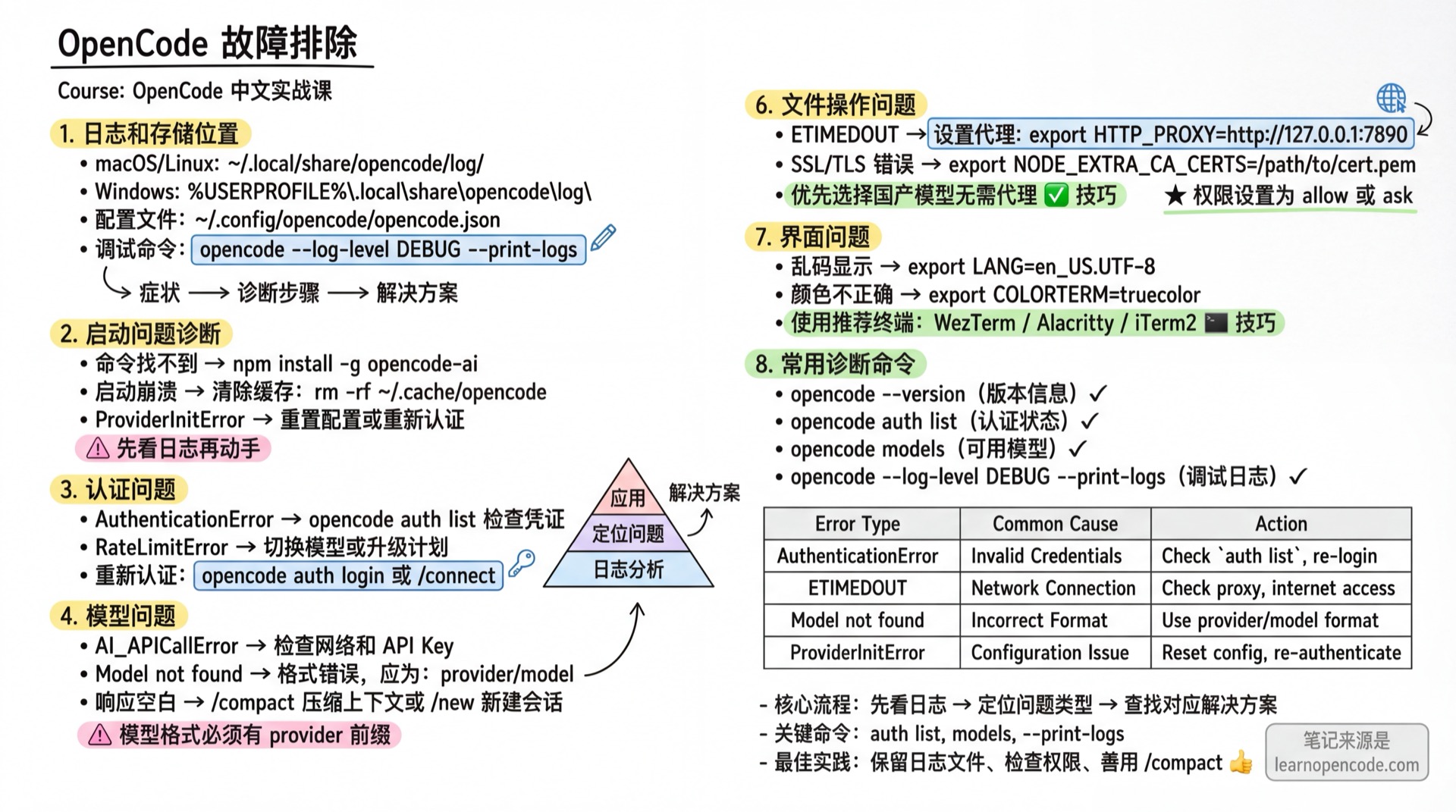
Logs and Storage Locations
Log Files
| Platform | Path |
|---|---|
| macOS/Linux | ~/.local/share/opencode/log/ |
| Windows | %USERPROFILE%\.local\share\opencode\log\ |
Log files are named with timestamps (e.g., 2025-01-09T123456.log) and the 10 most recent are retained.
# View latest logs
ls -lt ~/.local/share/opencode/log/ | head

# Enable debug logging
opencode --log-level DEBUG

# Print logs to terminal
opencode --print-logs
Storage Locations
| Data Type | Path |
|---|---|
| Config file | ~/.config/opencode/opencode.json |
| Authentication | ~/.local/share/opencode/auth.json |
| Logs | ~/.local/share/opencode/log/ |
| Project data | ~/.local/share/opencode/storage/ |
| Cache | ~/.cache/opencode/ |
Startup Issues
Cannot Start / Command Not Found
Symptoms:
zsh: command not found: opencodeDiagnostic Steps:
# 1. Check if installed
which opencode
npm list -g opencode-ai

# 2. Check PATH
echo $PATH | tr ':' '\n' | grep -E "(npm|bin)"Solutions:
# Reinstall
npm install -g opencode-ai

# Manually add to PATH
echo 'export PATH="$HOME/.npm-global/bin:$PATH"' >> ~/.bashrc
source ~/.bashrc
Startup Crash / Blank Screen
Symptoms: Exits immediately after startup or displays a blank screen
Diagnostic Steps:
# 1. View error logs
opencode --print-logs 2>&1 | head -50

# 2. Clear cache and retry
rm -rf ~/.cache/opencode
opencode

# 3. Reset configuration
mv ~/.config/opencode/opencode.json ~/.config/opencode/opencode.json.bak
opencode
Common Causes:
- Configuration file syntax errors
- Incompatible terminal
- Corrupted cache
ProviderInitError
Symptoms:
ProviderInitError: Failed to initialize providerDiagnostic Steps:
# 1. Verify provider configuration
opencode auth list

# 2. Clear storage and retry
rm -rf ~/.local/share/opencodeSolutions:
- Confirm proper setup following the Provider Guide
- Reconfigure using
/connect
Authentication Issues
Invalid API Key
Symptoms:
AuthenticationError: Invalid API keyDiagnostic Steps:
# Check configured credentials
opencode auth list

# Check environment variables
env | grep API_KEYSolutions:
# Reconfigure
opencode auth login
# Or in TUI
/connect
GitHub Copilot Authentication Failed
Symptoms:
Error: 403 Forbidden
Please reauthenticate with the copilot provider to ensure
your credentials work properly with OpenCode.Cause: GitHub Copilot OAuth Token has expired or become invalid.
Solutions:
# Re-authenticate GitHub Copilot
opencode auth login
# Select github-copilot provider and follow the OAuth flow
For GitHub Enterprise:
# Specify Enterprise URL in configuration
{
  "provider": {
    "github-copilot": {
      "options": {
        "enterpriseUrl": "https://github.your-company.com"
      }
    }
  }
}
Token Quota Exceeded
Symptoms:
RateLimitError: quota exceededSolutions:
- Wait for quota reset
- Upgrade your account plan
- Switch to another provider/model
# Switch model
opencode -m zhipu/glm-4-flash
Model Issues
AI_APICallError
Symptoms:
AI_APICallError: API call failedDiagnostic Steps:
# 1. Check network
curl -I https://api.anthropic.com

# 2. Clear provider package cache
rm -rf ~/.cache/opencode

# 3. Restart opencode
Common Causes:
- Network issues
- Invalid API Key
- Outdated provider package version
ProviderModelNotFoundError
Symptoms:
ProviderModelNotFoundError: Model not foundCause: Incorrect model reference format
Correct Format: <providerId>/<modelId>
Examples:
anthropic/claude-sonnet-4-20250514openai/gpt-4odeepseek/deepseek-chat
Solutions:
# View available models
opencode models
Empty Model Response
Symptoms: AI doesn't respond or response is empty
Possible Causes:
- Context too long and truncated
- Content filter triggered
- Model overloaded
Solutions:
# Compress context
/compact

# New session
/new

# Switch model
/models
API Retry Mechanism
When encountering temporary errors like Too Many Requests or Provider is overloaded, OpenCode automatically retries—you don't need to do anything manually.
Retry Strategy
| Parameter | Value | Description |
|---|---|---|
| Initial delay | 2 seconds | Wait time for first retry |
| Backoff factor | 2x | Delay doubles with each retry |
| Max delay (no response header) | 30 seconds | Upper limit when provider doesn't return Retry-After header |
| Max delay (with response header) | Per header | Uses provider-specified wait time when Retry-After header is present |
Retry delay calculation (when provider doesn't return response header)
First retry:  2 seconds
Second retry: 4 seconds
Third retry:  8 seconds
Fourth retry: 16 seconds
Fifth retry:  30 seconds (reaches limit, stops growing)
If the provider returns a Retry-After or Retry-After-Ms response header, OpenCode prioritizes the provider-specified wait time,不受 30 秒上限限制。
Which Errors Auto-Retry
| Error | Auto-Retry | Description |
|---|---|---|
Too Many Requests (429) | ✅ Yes | Rate limiting |
Provider is overloaded (503) | ✅ Yes | Service overloaded |
Rate Limited | ✅ Yes | Frequency limiting |
| Context overflow | ❌ No | Need to compact or create new session |
| Authentication failed (401) | ❌ No | Need to fix API Key |
| Free quota exhausted | ❌ No | Shows recharge link |
TIP
If you see OpenCode waiting to retry, don't rush to close it. Waiting usually resolves the issue. If frequently triggered, consider switching to another model.
Output Truncation
When tool output is too long, OpenCode automatically truncates it to avoid consuming excessive context space.
Truncation Rules
| Limit | Default Value | Description |
|---|---|---|
| Max lines | 2,000 lines | Truncated if exceeded |
| Max bytes | 50 KB | Truncated if exceeded |
| Full output retention | 7 days | Truncated full files are automatically cleaned up |
What You'll See After Truncation
...2000+ lines truncated...

The tool call succeeded but the output was truncated.
Full output saved to: /path/to/tool-output/tool_xxx
Use Grep to search the full content or Read with offset/limit
to view specific sections.
Note: Truncation doesn't affect operation results, only display is trimmed. Full content is saved to local files.
How to Handle Truncated Output
- Have AI search with Grep: Tell AI "search for xxx in the truncated output"
- Have AI read in segments: AI will use Read tool's
offsetandlimitparameters to view sections - Delegate to sub-Agent: If AI has Task tool permission, it may suggest delegating to explore agent, saving context
TIP
Truncation is normal behavior, not an error. In most cases, AI automatically handles truncated output—you don't need to intervene.
Permission Denied
Symptoms
Operation rejected with:
The user rejected permission to use this specific tool call.Default Permission Rules
OpenCode has different default permissions for various operations:
| Operation | Default Permission | Description |
|---|---|---|
| Read regular files | ✅ Allow | Most files can be read directly |
Read .env files | ⚠️ Confirm | Protects sensitive config (API Keys, etc.) |
Read .env.* files | ⚠️ Confirm | E.g., .env.local, .env.production |
Read .env.example | ✅ Allow | Example files contain no sensitive info |
| Access directories outside project | ⚠️ Confirm | Prevents unauthorized access |
| Edit files (Build mode) | ✅ Allow | Build mode is writable by default |
| Edit files (Plan mode) | ❌ Deny | Plan mode forbids editing regular files (except plan files) |
| Execute Bash commands | ✅ Allow | Allowed by default |
Solutions
One-time allow: Press y to confirm at permission prompt
Always allow: Press a key, won't ask again for similar operations in that session
Modify configuration: Set permission policy in opencode.json
{
  "permission": {
    "read": "allow",
    "edit": "allow",
    "bash": "ask"
  }
}
You can also set for specific file patterns:
{
  "permission": {
    "read": {
      "*": "allow",
      "*.env": "allow"
    }
  }
}
Network Issues
Connection Timeout
Symptoms:
ETIMEDOUT / ECONNREFUSED / ECONNRESETDiagnostic Steps:
# 1. Test basic network
ping api.anthropic.com

# 2. Test HTTPS
curl -v https://api.anthropic.com

# 3. Test proxy
curl -x http://127.0.0.1:7890 https://api.anthropic.comSolutions:
# Set proxy
export HTTP_PROXY=http://127.0.0.1:7890
export HTTPS_PROXY=http://127.0.0.1:7890

# Or use alternative models
/connect  # Select your preferred provider
SSL/TLS Errors
Symptoms:
UNABLE_TO_VERIFY_LEAF_SIGNATURE
CERT_HAS_EXPIREDSolutions:
# Corporate certificates
export NODE_EXTRA_CA_CERTS=/path/to/cert.pem

# Temporarily disable verification (not recommended for production)
export NODE_TLS_REJECT_UNAUTHORIZED=0
Corporate Proxy Issues
Symptoms:
ECONNREFUSED when connecting to API endpoints
Proxy authentication required
Connection reset by peer
Common Causes:
- Corporate proxy intercepts HTTPS traffic
- Proxy requires authentication
- Proxy certificate not trusted by Node.js
- Certain domains blocked by corporate firewall
Diagnostic Steps:
# 1. Check proxy settings
env | grep -i proxy

# 2. Test with proxy
curl -x http://corporate-proxy:8080 https://api.anthropic.com

# 3. Check if proxy requires auth
curl -v -x http://corporate-proxy:8080 https://api.anthropic.com 2>&1 | grep -i "407"Solutions:
# Set proxy with authentication
export HTTP_PROXY=http://username:password@corporate-proxy:8080
export HTTPS_PROXY=http://username:password@corporate-proxy:8080

# For NTLM authentication, use a proxy tool like cntlm
# Install cntlm
sudo apt install cntlm  # Debian/Ubuntu
brew install cntlm      # macOS

# Configure cntlm
cntlm -u username -d DOMAIN -H
# Add hashed credentials to /etc/cntlm.conf

# Then set proxy to localhost
export HTTP_PROXY=http://127.0.0.1:3128
export HTTPS_PROXY=http://127.0.0.1:3128

# Trust corporate CA certificate
export NODE_EXTRA_CA_CERTS=/path/to/corporate-ca.pem
export SSL_CERT_FILE=/path/to/corporate-ca.pem
No_Proxy Settings:
# Exclude certain domains from proxy
export NO_PROXY=localhost,127.0.0.1,.internal.company.com
Firewall Issues
Symptoms:
Connection timed out
Network is unreachable
Access denied
Common Causes:
- Firewall blocks outbound connections to specific ports
- Firewall blocks specific API domains
- Country/region restrictions
Diagnostic Steps:
# 1. Test DNS resolution
nslookup api.anthropic.com

# 2. Test specific port
telnet api.anthropic.com 443
# Or
nc -zv api.anthropic.com 443

# 3. Check which ports are allowed
# Contact your IT departmentSolutions:
Request firewall exception: Ask IT to allowlist required domains:
api.anthropic.comapi.openai.comgenerativelanguage.googleapis.com- Or your provider's API endpoint
Use alternative models: If certain providers are blocked, switch to accessible ones
On-premise/self-hosted options: Consider self-hosted models like:
- Ollama with local models
- LM Studio
- vLLM server
# Connect to local model
opencode
# Then use /connect to configure local provider
VPN Issues
Symptoms:
Connection unstable
High latency
Intermittent failures
DNS resolution issues
Common Causes:
- VPN routes traffic through distant servers
- VPN DNS conflicts
- VPN kill switch blocks connections when disconnected
- Split tunneling misconfiguration
Diagnostic Steps:
# 1. Check current IP and routing
curl ifconfig.me
traceroute api.anthropic.com

# 2. Test DNS resolution
dig api.anthropic.com

# 3. Compare with/without VPN
# Disconnect VPN and retrySolutions:
# 1. Use split tunneling
# Configure VPN to exclude API endpoints

# 2. Use public DNS
export DNS_SERVER=8.8.8.8
# Or configure in /etc/resolv.conf

# 3. VPN-specific DNS
# Some VPNs require their DNS servers

# 4. If VPN causes issues, try without it
# Some providers work better without VPN
VPN-Specific Tips:
| VPN Type | Potential Issue | Solution |
|---|---|---|
| Corporate VPN | All traffic routed through company network | Use split tunneling |
| Consumer VPN | IP may be rate-limited | Switch VPN server or disable |
| Always-on VPN | May block connections when reconnecting | Add retry logic or manual reconnect |
File Operation Issues
File Write Failed
Symptoms: AI says it modified the file but nothing changed
Diagnostic Steps:
# 1. Check file permissions
ls -la path/to/file

# 2. Check OpenCode permission settings
cat ~/.config/opencode/opencode.json | jq .permissionSolutions:
- Ensure file is writable
- Check permission setting is
alloworask - Press
yto confirm at permission prompt
Git Undo Not Working
Symptoms: /undo has no effect
Diagnostic Steps:
# Confirm it's a Git repository
git statusSolutions:
- Ensure you're in a Git repository
- Ensure there are changes to undo
Interface Issues
Garbled Display
Symptoms: Interface shows boxes or garbled text
Solutions:
# Set correct encoding
export LANG=en_US.UTF-8
export LC_ALL=en_US.UTF-8

# Use recommended terminals
# WezTerm / Alacritty / iTerm2

# Use Nerd Fonts
Incorrect Colors
Symptoms: Colors display abnormally or not at all
Solutions:
# Set truecolor
export COLORTERM=truecolor

# Set terminal type
export TERM=xterm-256color

# Switch theme
/theme
Linux-Specific Issues
Clipboard Not Working
Symptoms: Copy/paste fails
Solutions:
# X11
sudo apt install xclip
# Or
sudo apt install xsel

# Wayland
sudo apt install wl-clipboard

# Headless environment
sudo apt install xvfb
Xvfb :99 -screen 0 1024x768x24 > /dev/null 2>&1 &
export DISPLAY=:99.0
npm Permission Denied (EACCES)
Symptoms:
EACCES: permission deniedSolutions:
# Fix npm permissions
mkdir ~/.npm-global
npm config set prefix '~/.npm-global'
echo 'export PATH=~/.npm-global/bin:$PATH' >> ~/.bashrc
source ~/.bashrc

# Reinstall
npm install -g opencode-ai
Quick Diagnostic Checklist
When encountering issues, check in this order:
- [ ] Check version:
opencode --version, confirm it's the latest - [ ] Check configuration: Is
opencode.jsonsyntax correct? (Validate JSON withjq .) - [ ] Check authentication:
opencode auth list, is API Key valid? Is OAuth expired? - [ ] Check quota: Is account balance sufficient? Rate limit triggered?
- [ ] Check network: Can you access provider API? (Test with
curl) - [ ] Check permissions: Do you have necessary file/directory access permissions?
- [ ] Check logs: Enable debug mode to view detailed logs
# Quick diagnostic trio
opencode --version
opencode auth list
opencode --log-level DEBUG --print-logs
Error Code Reference
Provider HTTP Errors
| Error Code | Meaning | Possible Cause | Auto-Retry |
|---|---|---|---|
| 400 | Bad Request | Invalid parameters, missing required fields | ❌ |
| 401 | Unauthorized | Invalid or expired API Key | ❌ |
| 403 | Forbidden | No permission to access this model | ❌ |
| 404 | Not Found | Model name incorrect or discontinued | ⚠️ OpenAI sometimes misreports |
| 413 | Payload Too Large | Context overflow (Cerebras/Mistral) | ❌ |
| 429 | Too Many Requests | Rate limit or quota limit triggered | ✅ |
| 2000+ | Internal Server Error | Provider internal error | ✅ |
| 503 | Service Unavailable | Provider maintenance or overload | ✅ |
OpenCode Internal Errors
| Error Type | Meaning | Solution |
|---|---|---|
ContextOverflowError | Context overflow | /compact to compress or /new for new session |
AI_APICallError | API call failed | Check network and authentication |
ProviderInitError | Provider initialization failed | Check configuration and authentication |
ProviderModelNotFoundError | Model not found | Check model name format provider/model |
RejectedError | User rejected permission | Press y to allow at permission prompt |
DeniedError | Operation denied by config rules | Check permission config in opencode.json |
Context Overflow Provider Error Messages
Different providers report context overflow with different error messages. OpenCode recognizes them uniformly:
| Provider | Error Message Pattern |
|---|---|
| Anthropic | prompt is too long |
| OpenAI | exceeds the context window |
| Google Gemini | input token count exceeds the maximum |
| DeepSeek | maximum context length is X tokens |
| OpenRouter | maximum context length is X tokens |
| Groq | reduce the length of the messages |
| Amazon Bedrock | input is too long for requested model |
| xAI (Grok) | maximum prompt length is X |
| GitHub Copilot | exceeds the limit of X |
| llama.cpp | exceeds the available context size |
| LM Studio | greater than the context length |
| Cerebras/Mistral | 400 (no body) / 413 (no body) |
| MiniMax | context window exceeds limit |
| Moonshot/Kimi | exceeded model token limit |
| Generic fallback | context length exceeded |
When encountering these errors, use /compact to compress context or /new to create a new session.
Diagnostic Commands Summary
# Version info
opencode --version

# System info
uname -a

# Debug logs
opencode --log-level DEBUG --print-logs

# View authenticated providers
opencode auth list

# View available models
opencode models
Getting Help
If none of the above methods resolve your issue:
Collect information:
bashopencode --version > debug.txt uname -a >> debug.txt cat ~/.config/opencode/opencode.json >> debug.txt 2>/dev/null ls -la ~/.local/share/opencode/log/ >> debug.txtSubmit an Issue: github.com/anomalyco/opencode/issues
Related Resources
- FAQ - Quick answers to common questions
- Network Configuration - Detailed network setup
- Configuration Options - Configuration reference
- Context Compaction - Compaction mechanism details
- Model Providers - Available model list
Still stuck?
Join the community to connect with 2000+ fellow users for real-time Q&A.