

Managing Your AI Environment
📝 Course Notes
Key takeaways from this lesson:
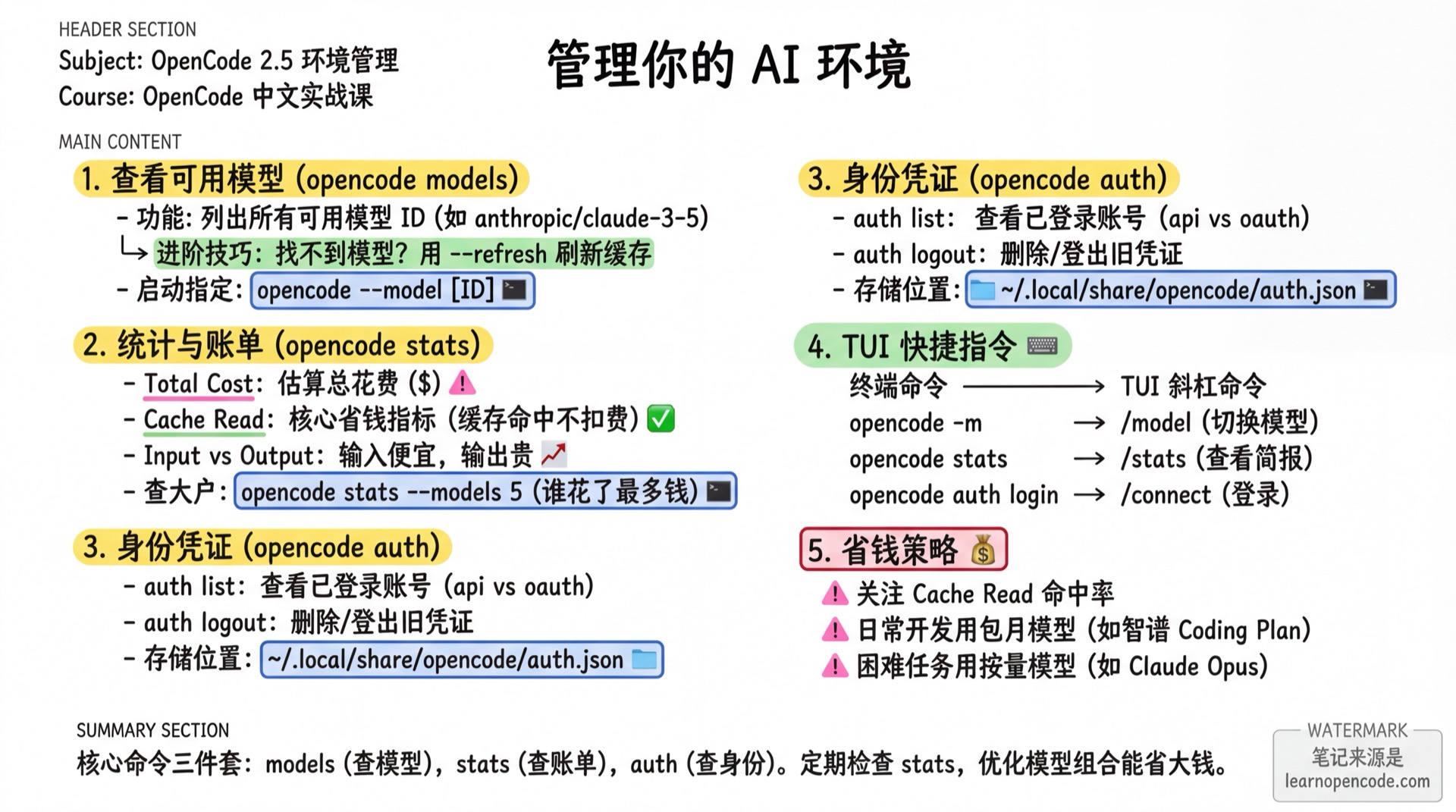
What You'll Learn
- 👀 View available models without entering the TUI
- 💰 Track token usage and identify which models cost the most
- 🔑 See which accounts you're logged into and log out when needed
- 🔄 Know how to refresh cache when configuration doesn't take effect
1. View Available Models
When you've configured multiple providers (like using both DeepSeek and Claude), or added a new key, you might ask: "What models can I actually use right now?"
Terminal Command: opencode models
Run directly in terminal:
opencode modelsYou'll see a list like this:
opencode/glm-4.7-free
anthropic/claude-3-5-sonnet-20241022
google/gemini-2.0-flash
ollama/deepseek-r1:7b
zhipuai-coding-plan/glm-4.7
...
Each line is a model ID (format: provider/model-name). You can copy this ID and specify it at startup:
# For example, start with Zhipu GLM-5
opencode --model zhipuai-coding-plan/glm-5
Advanced Tip 1: Filter by Provider
List too long? You can specify the provider name directly:
# Only show Anthropic models
opencode models anthropic

# Only show DeepSeek models (if configured)
opencode models deepseek
Much cleaner - only shows the models you care about.
Advanced Tip 2: View Pricing
Want to know the specific pricing for a model? Add the --verbose flag:
opencode models --verboseThe output will include detailed metadata, including inputCost and outputCost:
zhipuai-coding-plan/glm-4.7
{
  "id": "zhipuai-coding-plan/glm-4.7",
  "name": "GLM 4.7",
  "provider": "zhipuai-coding-plan",
  "inputCost": 0,    // $0!
  "outputCost": 0    // $0!
}
Advanced Tip 3: Refresh Cache
💡 Why don't I see the model after configuring the key?
OpenCode caches the model list. If you just added a new configuration in opencode.json, or just got access to a new model (e.g., downloaded a new Ollama model), the list may not update immediately.
In this case, you need to force refresh:
opencode models --refreshAfter seeing the Models cache refreshed message, run opencode models again to see the new models.
Key Step: Set Your Favorite Model as Default
Found the model ID you want to use (e.g., zhipuai-coding-plan/glm-4.7), you don't want to type it every time you start, right?
Open your configuration file (usually at ~/.config/opencode/opencode.json) and add it:
{
  "model": "zhipuai-coding-plan/glm-4.7"
}
Now just type opencode and it will start with your favorite model.
2. Calculate Costs: View Usage Statistics
"How much did I spend coding this month?" "Which do I use more, Claude or GPT-4?"
OpenCode has a built-in statistics panel.
Terminal Command: opencode stats
Run:
opencode statsYou'll see a detailed dashboard. The example below shows one month of usage; the tool section uses --tools 7 to keep the output short:
┌────────────────────────────────────────────────────────┐
│                       OVERVIEW                         │
├────────────────────────────────────────────────────────┤
│Sessions                                           948 │
│Messages                                        30,575 │
│Days                                                29 │
└────────────────────────────────────────────────────────┘

┌────────────────────────────────────────────────────────┐
│                    COST & TOKENS                       │
├────────────────────────────────────────────────────────┤
│Total Cost                                    $1232.56 │
│Avg Cost/Day                                    $42.50 │
│Avg Tokens/Session                                 1.3M │
│Median Tokens/Session                            112.8K │
│Input                                           530.6M │
│Output                                            9.9M │
│Cache Read                                      703.0M │
│Cache Write                                       6.2M │
└────────────────────────────────────────────────────────┘

┌────────────────────────────────────────────────────────┐
│                      TOOL USAGE                        │
├────────────────────────────────────────────────────────┤
│ read               ████████████████████ 7270 (34.3%)   │
│ bash               ███████████          4074 (19.2%)   │
│ edit               ████████             3007 (14.2%)   │
│ write              ████                  1785 ( 8.4%)   │
│ glob               ███                   1263 ( 6.0%)   │
│ task               ██                    1023 ( 4.8%)   │
│ grep               ██                     892 ( 4.2%)   │
└────────────────────────────────────────────────────────┘
Key Metrics Explained
For beginners, focus on these numbers:
- Total Cost: Estimated cost in USD. OpenCode calculates based on each provider's public pricing.
- Avg / Median Tokens/Session:
Avg(Average): Average token consumption across all sessions.Median: Middle value when sorted by consumption. If some sessions are extremely "token-heavy", the median will be much lower than the average, better reflecting "normal" usage levels.
- Input vs Output:
Input: Content you send to AI + file content AI reads. Large volume but cheap.Output: Code and responses AI writes. Small volume but expensive.
- Cache Read / Cache Write (Context Cache):
- Cache Read: Cache-read tokens reported by the provider. Whether they are billed and at what rate depends on the model and provider configuration.
- Cache Write: Cache-write tokens reported by the provider. Billing and rates likewise depend on the model and provider configuration.
- Tool Usage:
- Shows which tools AI uses most.
read(reading files) usually ranks first, showing AI is working to understand your code.bash(running commands) andedit(modifying code) are also primary tools.- Too many tools listed? Use
--tools 5to see only the top 5 (see the "Trim Output" section below).
Advanced: Project-Specific Statistics (Requires Git)
☕ Note for non-developers
If you don't know Git, or think "mixed billing is fine", you can skip this section! This section is for advanced users who need to clearly separate "company project" and "personal project" bills.
By default, opencode stats shows your total bill across all projects.
If you're in a Git project and want to see only that project's costs, add the --project "" flag:
# Only see statistics for current project
opencode stats --project ""
Real case comparison (running in the opencode source repository):
- Running
opencode stats(total): shows $1232. - Running
opencode stats --project ""(current Git project): shows $923.
This means about $300 was spent on other projects (or Global area).
💡 Core Logic: What counts as a "project"?
OpenCode identifies projects by the Git repository's first commit record.
- Project (separate billing): Git repository with at least one commit.
- Global (global billing): Everything else (regular folders, empty Git repos).
⚠️ Pitfall Guide: If you run opencode stats --project "" in a regular folder, the amount shown is the sum of all Global operations on this machine (e.g., usage in Downloads, Desktop, and all non-Git directories combined), not just the current folder.
Want to enable separate billing? Just three steps (no GitHub connection needed, local repo is fine):
git initgit add .git commit -m "init"👈 This step is crucial!
💡 Hidden Feature: Automatic Bill "Migration"
You might worry: "I've been coding in this folder for days, spent quite a few tokens, but never used Git. If I initialize a repo now, will the previous bills be lost?"
OpenCode is smarter than you think: It automatically transfers!
When you successfully create a Git project (and commit) in a folder, OpenCode automatically scans the "global ledger" and transfers all historical sessions belonging to this folder path to the new project.
So, use it confidently, no need to worry about whether to "activate membership first" or "buy things first".
See Who's the "Token Eater"
Want to know which model cost you the most? Run:
# Show top 5 most expensive models
opencode stats --models 5

# Show detailed list of all models
opencode stats --models
This will list the Top 5 detailed bills:
┌────────────────────────────────────────────────────────┐
│                      MODEL USAGE                       │
├────────────────────────────────────────────────────────┤
│ anthropic/claude-opus-4-5-20251101                     │
│  Messages                                       12,548 │
│  Input Tokens                                   241.0M │
│  Cost                                       $1232.5613 │
├────────────────────────────────────────────────────────┤
│ zhipuai-coding-plan/glm-4.7                            │
│  Messages                                        3,023 │
│  Input Tokens                                    68.9M │
│  Cost                                          $0.0000 │
├────────────────────────────────────────────────────────┤
The difference is clear at a glance:
- Claude Opus: Pay-per-use, powerful but really expensive, burned $1232.
- Zhipu GLM-5: Shows $0.0000, because I purchased a Coding Plan monthly subscription.
💡 Money-Saving Strategy
This is the purpose of OpenCode's statistics feature—it tells you where your money went. If you find a model with huge usage and high cost, consider switching to a subscription-based model (like Zhipu) as your main model, and save the expensive pay-per-use models for the hardest problems.
So, checking this statistics regularly can help you optimize your model combination and save real money.
Advanced Tip: View Recent Usage Only
By default, stats shows cumulative historical totals. You can also restrict the report to recently active sessions:
Use the --days flag to specify the number of days:
# Include sessions updated since local midnight
opencode stats --days 0

# Include sessions updated during the past 24 hours
opencode stats --days 1

# Include sessions updated during the last 7 days
opencode stats --days 7
--days is not an incremental bill
This flag filters sessions by their last update time, then sums each matching session's complete accumulated usage. --days 0 is not “usage added today,” and --days 1 is not a strict 24-hour usage delta.
🔥 Power Combo:
Combine the active-session filter with model statistics to see which models were used by sessions updated today:
# Show complete model totals for sessions updated since local midnight
opencode stats --days 0 --models
Trim Output: Show Only Top Tools
By default, stats lists every tool you've ever used. Over time, this list gets very long.
Use --tools to show only the top N:
# Show only the top 5 most-used tools
opencode stats --tools 5

# Combine with time filter: top 3 tools in the last 7 days
opencode stats --days 7 --tools 3
3. Check Credentials: Manage Identity
Over time, you may have tried many models and configured many keys. What credentials are stored in your OpenCode now?
View Credential List
opencode auth listYou'll see a tree diagram like this:
Credentials ~/.local/share/opencode/auth.json
┌
●  Zhipu AI Coding Plan  api
│
●  Google  oauth
│
●  OpenAI  oauth
│
└  3 credentials
This command tells you:
- Authentication Method:
api: Added by enteringsk-...key.oauth: Authorized via web redirect (like Google, OpenAI).
- Storage Location: Usually at
~/.local/share/opencode/auth.json.⚠️ Security Note
This file stores your keys in plain text JSON format. Make sure to protect your computer and this file, and never upload it to a public code repository.
Logout/Delete Credentials
If you want to delete an old key (e.g., key leaked or expired):
opencode auth logoutThen press ↑ ↓ to select the provider to delete, and press Enter to confirm.
4. Corresponding Operations in TUI
The above are operations when you're in the terminal (not inside OpenCode interface). If you're already in OpenCode, there are corresponding shortcut commands:
| What You Want to Do | Terminal Command | TUI Slash Command |
|---|---|---|
| Switch model | opencode -m <id> | /models |
| Login account | opencode auth login | /connect |
| View status | opencode stats | /status (shows summary) |
| Exit program | Ctrl+C | /exit |
Difference
The /models command in TUI not only shows models but also directly switches the current session's model.
Checklist ✅
- [ ] Run
opencode modelsto confirm you see your configured models - [ ] Run
opencode statsto glance at your token usage (is it less than you imagined?) - [ ] Run
opencode stats --tools 5to see only the top 5 tools - [ ] Run
opencode stats --days 0to inspect sessions updated today - [ ] Run
opencode auth listto clean up old credentials you don't need
Appendix: Source Code Reference
Click to expand and view source code locations
Last updated: 2026-08-24
| Feature | File Path | Lines |
|---|---|---|
| View Models | src/cli/cmd/models.ts | Entire file |
| Statistics Logic | src/cli/cmd/stats.ts | Flags 49-80; time filter 88-122; token aggregation and output 161-393 |
| Project ID Recognition | src/project/project.ts | 50-170 |
| Auth List | src/cli/cmd/auth.ts | 170-215 |
| Auth Storage | src/auth/index.ts | 38-73 |
Key Logic Explained:
Project ID Generation (
project.ts):- OpenCode looks up for
.gitdirectory. - If found, tries to get
root commithash as project ID. - If no
.gitor no commit, falls back to ID"global". This is why empty folders share the same global billing.
- OpenCode looks up for
Bill Migration Mechanism (
project.ts):- When OpenCode detects the current project ID is not
global, it triggersmigrateFromGlobal. - It iterates through all Global sessions, checking if
session.directorymatches the current workspace. - If it matches, automatically updates that session's
projectIDto the new project's ID, achieving "bill transfer".
- When OpenCode detects the current project ID is not
Statistics Filtering (
stats.ts):- By default (when
projectFilteris undefined), all sessions are counted. - Only when
--project ""is explicitly passed, it callsgetCurrentProject()to get the current directory ID and filters.
- By default (when
Credential Storage (
auth/index.ts):- Credentials are stored in
~/.local/share/opencode/auth.json. - Code uses
JSON.stringifydirectly for writing, unencrypted. - Only file permission
0o600(current user read/write only) is set as a security measure.
- Credentials are stored in
With your environment managed, Phase 2 learning is complete.
Next, we enter Phase 3: Efficient Workflows.
In the next lesson, we'll learn 3.1 Plan vs Build.
You'll learn:
- What is Plan (thinking) mode
- What is Build (execution) mode
- How to switch between these modes for smarter AI work
Next Lesson Preview
In the next lesson, we'll learn 2.6 Git Basics.
You'll learn:
- Use commits to record "returnable save points"
- Sync local repository to GitHub
- Why Git makes certain undo/rollback operations more reliable