

5.6a Theme System
Switch among 33 built-in JSON themes, with a generated
systemtheme when terminal colors are available.
📝 Course Notes
Key takeaways from this lesson:
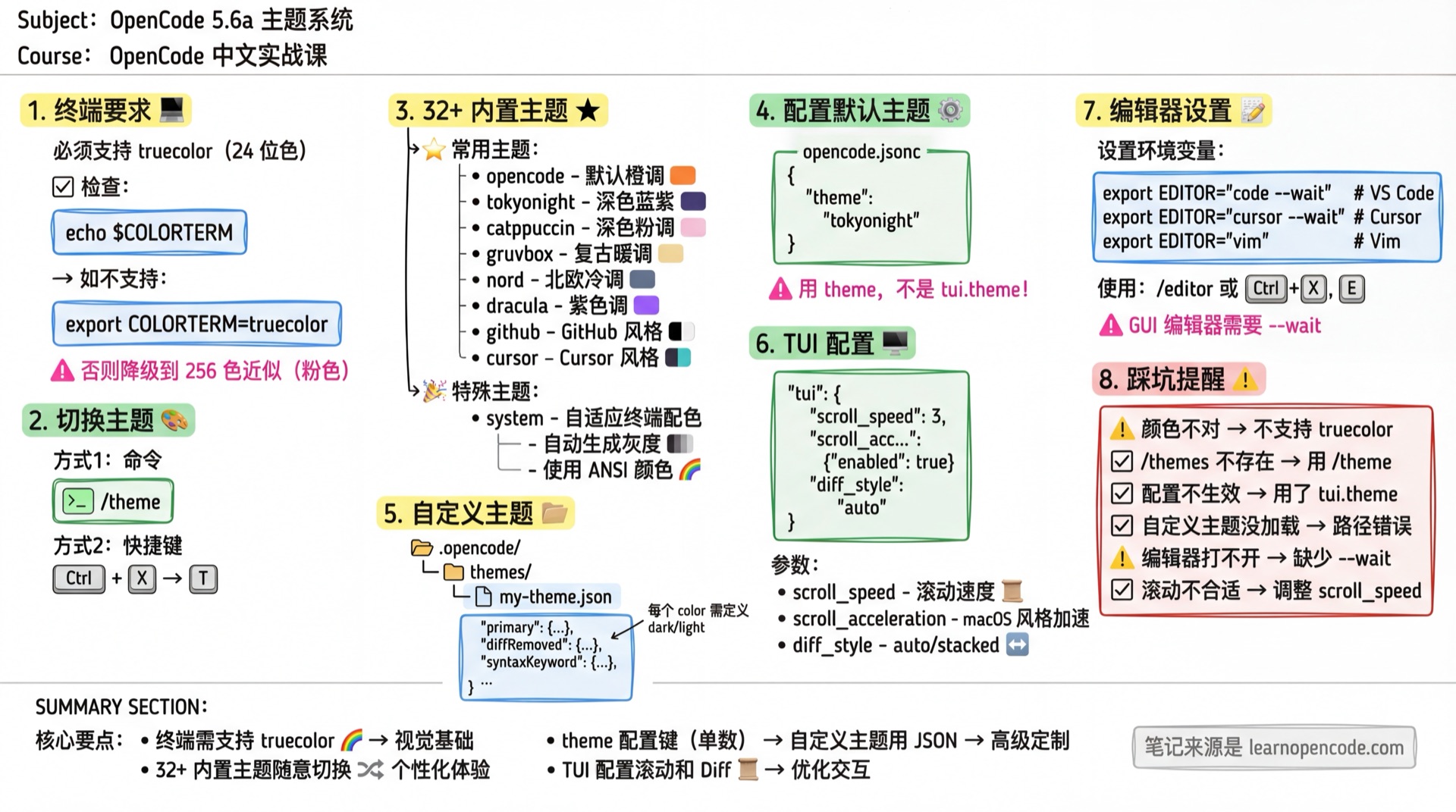
What You'll Learn
- Switch and set themes
- Understand theme loading priority
- Create custom themes
- Configure TUI scrolling and Diff styles
Terminal Requirements
Themes require terminal support for truecolor (24-bit color):
# Check support
echo $COLORTERM  # Should output truecolor or 24bit

# If not supported, add to shell config
export COLORTERM=truecolor
Compatibility Notes:
- Supported: iTerm2, Alacritty, Kitty, Windows Terminal, GNOME Terminal (newer versions)
- Without truecolor support, themes fall back to an approximate 256-color palette
Switch Themes
/themesOr use shortcut: Ctrl+X → T
Built-in Themes
OpenCode includes 33 static JSON themes. When terminal colors are available, it also generates a system theme:
| Theme | Style | Source |
|---|---|---|
opencode | Default theme, orange tones | OpenCode Original |
system | Adaptive terminal colors | Special |
tokyonight | Dark, blue-purple tones | tokyonight.nvim |
catppuccin | Dark, soft pink tones | Catppuccin |
catppuccin-macchiato | Dark, Macchiato variant | Catppuccin |
catppuccin-frappe | Dark, Frappe variant | Catppuccin |
gruvbox | Dark, retro warm tones | Gruvbox |
nord | Dark, Nordic cool tones | Nord |
everforest | Dark, natural green | Everforest |
ayu | Dark, Ayu style | Ayu |
carbonfox | Dark, Carbonfox style | Nightfox |
kanagawa | Dark, Japanese ink painting | Kanagawa |
one-dark | Dark, Atom style | Atom One |
dracula | Dark, purple tones | Dracula |
matrix | Hacker style green | Classic |
monokai | Dark, classic Monokai | Monokai |
material | Dark, Material Design | Material |
solarized | Dark/Light, Solarized | Solarized |
palenight | Dark, purple-blue tones | Palenight |
nightowl | Dark, suitable for night | Night Owl |
rosepine | Dark, rose tones | Rose Pine |
synthwave84 | Retro neon style | Synthwave '84 |
cobalt2 | Dark, cobalt blue tones | Cobalt2 |
github | GitHub style | GitHub |
vercel | Dark, Vercel style | Vercel |
cursor | Dark, Cursor style | Cursor |
vesper | Dark, soft | Vesper |
aura | Dark, purple tones | Aura |
flexoki | Dark, soft ink tones | Flexoki |
zenburn | Dark, low contrast eye-friendly | Zenburn |
mercury | Dark, silver-gray tones | Mercury |
orng | Dark, orange tones | OpenCode |
lucent-orng | Dark, bright orange tones | OpenCode |
osaka-jade | Dark, jade green tones | OpenCode |
Enter
/themesto preview all currently available themes in real time.
System Theme
system is a special theme that automatically adapts to your terminal colors:
- Auto-generate grayscale: Generates optimal contrast grayscale based on terminal background color
- Uses ANSI colors: Uses standard ANSI colors (0-15), follows terminal color scheme
- Preserves terminal defaults: Text and background use
none, maintains native terminal appearance
Best for:
- Users who want OpenCode to match their terminal appearance
- Users with custom terminal color schemes
- Users who want consistent style across all terminal programs
{
  "$schema": "https://opencode.ai/tui.json",
  "theme": "system"
}
Configure Default Theme
{
  "$schema": "https://opencode.ai/tui.json",
  "theme": "tokyonight"
}Note: Save this as
tui.jsonortui.jsonc. We recommend placingthemedirectly at the top level of the TUI config. Do not puttui.themein the mainopencode.json; the standalone TUI config remains compatible with the legacy nested form, but you should not continue using it.
When upgrading from an older release, the TUI attempts to migrate theme from a legacy main config into a new tui.json in the same directory. It skips the migration if that directory already contains tui.json; otherwise, it writes the new file successfully and creates or reuses <original-main-config>.tui-migration.bak before removing theme, keybinds, and tui from the old main config. Having only tui.jsonc does not cause the migration to be skipped.
Custom Themes
Theme Loading Order
Priority from low to high (later loaded themes override earlier ones):
- Built-in themes - Embedded in binary file
- User config directory -
~/.config/opencode/themes/*.jsonor$XDG_CONFIG_HOME/opencode/themes/*.json .opencode/themesdirectories along the path - Loaded while walking from the current directory toward its parents
Themes with the same name override earlier definitions. For example, creating ~/.config/opencode/themes/tokyonight.json overrides the built-in theme. If multiple .opencode/themes directories define the same name, the parent directory is loaded later and wins; do not assume the current directory always has priority.
Create Theme
User global theme:
mkdir -p ~/.config/opencode/themes
vim ~/.config/opencode/themes/my-theme.json
Project-specific theme:
mkdir -p .opencode/themes
vim .opencode/themes/my-theme.json
Theme JSON Format
{
  "$schema": "https://opencode.ai/theme.json",
  "defs": {
    // Color definitions (optional), for reuse
    "bg": "#1a1b26",
    "fg": "#c0caf5",
    "blue": "#7aa2f7",
    "green": "#9ece6a",
    "red": "#f7768e"
  },
  "theme": {
    // Required color properties
    "primary": { "dark": "blue", "light": "#3b7dd8" },
    "text": { "dark": "fg", "light": "#1a1a1a" },
    "background": { "dark": "bg", "light": "#ffffff" }
    // ... other properties
  }
}
Color Formats
| Format | Example | Description |
|---|---|---|
| Hex | "#ffffff" | Standard hexadecimal color |
| ANSI | 3 | 0-255 ANSI color code |
| Reference | "primary" | Reference color defined in defs |
| Light/Dark | {"dark": "#000", "light": "#fff"} | Separate settings for dark/light mode |
| None | "none" | Use terminal default color (transparent) |
Complete Theme Properties
Themes contain the following color properties. Every required property must have a resolvable value, but it does not have to use a dark/light object: you can provide a single color, a reference, or an ANSI value, or use { dark, light } to configure each mode separately.
Base Colors:
| Property | Description |
|---|---|
primary | Primary color, for emphasized elements |
secondary | Secondary color |
accent | Accent color |
error | Error message color |
warning | Warning message color |
success | Success message color |
info | Info message color |
Text & Background:
| Property | Description |
|---|---|
text | Main text color |
textMuted | Secondary/muted text |
background | Main background color |
backgroundPanel | Panel background color |
backgroundElement | Element background color |
Borders:
| Property | Description |
|---|---|
border | Normal border |
borderActive | Active state border |
borderSubtle | Subtle border |
Diff View:
| Property | Description |
|---|---|
diffAdded | Added line text color |
diffRemoved | Removed line text color |
diffContext | Context line text color |
diffHunkHeader | Hunk header text color |
diffHighlightAdded | Added highlight |
diffHighlightRemoved | Removed highlight |
diffAddedBg | Added line background |
diffRemovedBg | Removed line background |
diffContextBg | Context background |
diffLineNumber | Line number color |
diffAddedLineNumberBg | Added line number background |
diffRemovedLineNumberBg | Removed line number background |
Markdown Rendering:
| Property | Description |
|---|---|
markdownText | Body text |
markdownHeading | Heading |
markdownLink | Link URL |
markdownLinkText | Link text |
markdownCode | Inline code |
markdownBlockQuote | Blockquote |
markdownEmph | Italic |
markdownStrong | Bold |
markdownHorizontalRule | Horizontal rule |
markdownListItem | List marker |
markdownListEnumeration | Ordered list number |
markdownImage | Image link |
markdownImageText | Image caption |
markdownCodeBlock | Code block text |
Syntax Highlighting:
| Property | Description |
|---|---|
syntaxComment | Comment |
syntaxKeyword | Keyword |
syntaxFunction | Function name |
syntaxVariable | Variable name |
syntaxString | String |
syntaxNumber | Number |
syntaxType | Type |
syntaxOperator | Operator |
syntaxPunctuation | Punctuation |
Complete Example
Using the Nord theme as an example:
{
  "$schema": "https://opencode.ai/theme.json",
  "defs": {
    "nord0": "#2E3440",
    "nord1": "#3B4252",
    "nord4": "#D8DEE9",
    "nord8": "#88C0D0",
    "nord11": "#BF616A",
    "nord14": "#A3BE8C"
  },
  "theme": {
    "primary": { "dark": "nord8", "light": "#5E81AC" },
    "secondary": { "dark": "#81A1C1", "light": "#81A1C1" },
    "error": { "dark": "nord11", "light": "nord11" },
    "success": { "dark": "nord14", "light": "nord14" },
    "text": { "dark": "nord4", "light": "nord0" },
    "background": { "dark": "nord0", "light": "#ECEFF4" },
    "diffAdded": { "dark": "nord14", "light": "nord14" },
    "diffRemoved": { "dark": "nord11", "light": "nord11" },
    "syntaxKeyword": { "dark": "#81A1C1", "light": "#81A1C1" },
    "syntaxString": { "dark": "nord14", "light": "nord14" }
    // ... other properties
  }
}
TUI Configuration
Besides theme colors, you can also configure TUI behavior:
{
  "$schema": "https://opencode.ai/tui.json",
  // Scroll speed (minimum 0.001)
  "scroll_speed": 3,

  // Scroll acceleration (overrides scroll_speed when enabled)
  "scroll_acceleration": {
    "enabled": true
  },

  // Diff rendering style
  // "auto": adapts to the terminal width
  // "stacked": always uses a single-column layout
  "diff_style": "auto"
}
Parameter Description:
| Parameter | Type | Default | Description |
|---|---|---|---|
scroll_speed | number | 3 | Scroll speed, minimum 0.001 |
scroll_acceleration.enabled | boolean | false | Enable macOS-style scroll acceleration |
diff_style | "auto" | "stacked" | "auto" | Diff render style |
Note: When
scroll_accelerationis enabled,scroll_speedsetting is ignored.
Like theme, all of these fields belong directly at the top level of tui.json. See the v1.18.22 TUI schema in the source code.
Editor Settings
OpenCode supports opening external editors for editing long text:
# Set editor (add to ~/.zshrc or ~/.bashrc)
export EDITOR="code --wait"  # VS Code
export EDITOR="cursor --wait" # Cursor
export EDITOR="vim"          # Vim
export EDITOR="nano"         # Nano
Use in OpenCode:
/editorOr shortcut: Ctrl+X → E
Note: GUI editors (VS Code, Cursor, etc.) require
--waitflag to let OpenCode wait for the editor to close.
Common Pitfalls
| Issue | Cause | Solution |
|---|---|---|
| Colors display incorrectly/degraded | Terminal doesn't support truecolor | Set COLORTERM=truecolor |
/theme command doesn't exist | Wrong command name | Use /themes (with s) |
| Theme config doesn't work | It was placed in the main opencode.json, or uses the discouraged nested form | Use theme at the top level of tui.json |
| Custom theme not loaded | Wrong path | Confirm placed in .opencode/themes/ or ~/.config/opencode/themes/ |
| Editor won't open | EDITOR variable incorrect | Confirm editor command is available, add --wait for GUI editors |
| Scrolling too fast/slow | Default speed unsuitable | Adjust top-level scroll_speed in tui.json or enable acceleration |
Lesson Summary
You learned:
- Use
/themesto switch among 33 built-in JSON themes and the generatedsystemtheme when available - Understand
systemtheme's adaptive mechanism - Set
themeintui.jsonto specify the default theme - Create custom theme JSON files
- Configure TUI scrolling and Diff styles
- Set up external editor
Next Lesson Preview
In the next lesson, we'll learn about keyboard shortcut customization.