

Network Configuration: Proxy & Environment Variables
Compliance Notice
Please comply with your organization's network usage policies and local regulations. This course only covers configuration methods for proxy environment variables.
📝 Course Notes
Key takeaways from this lesson:
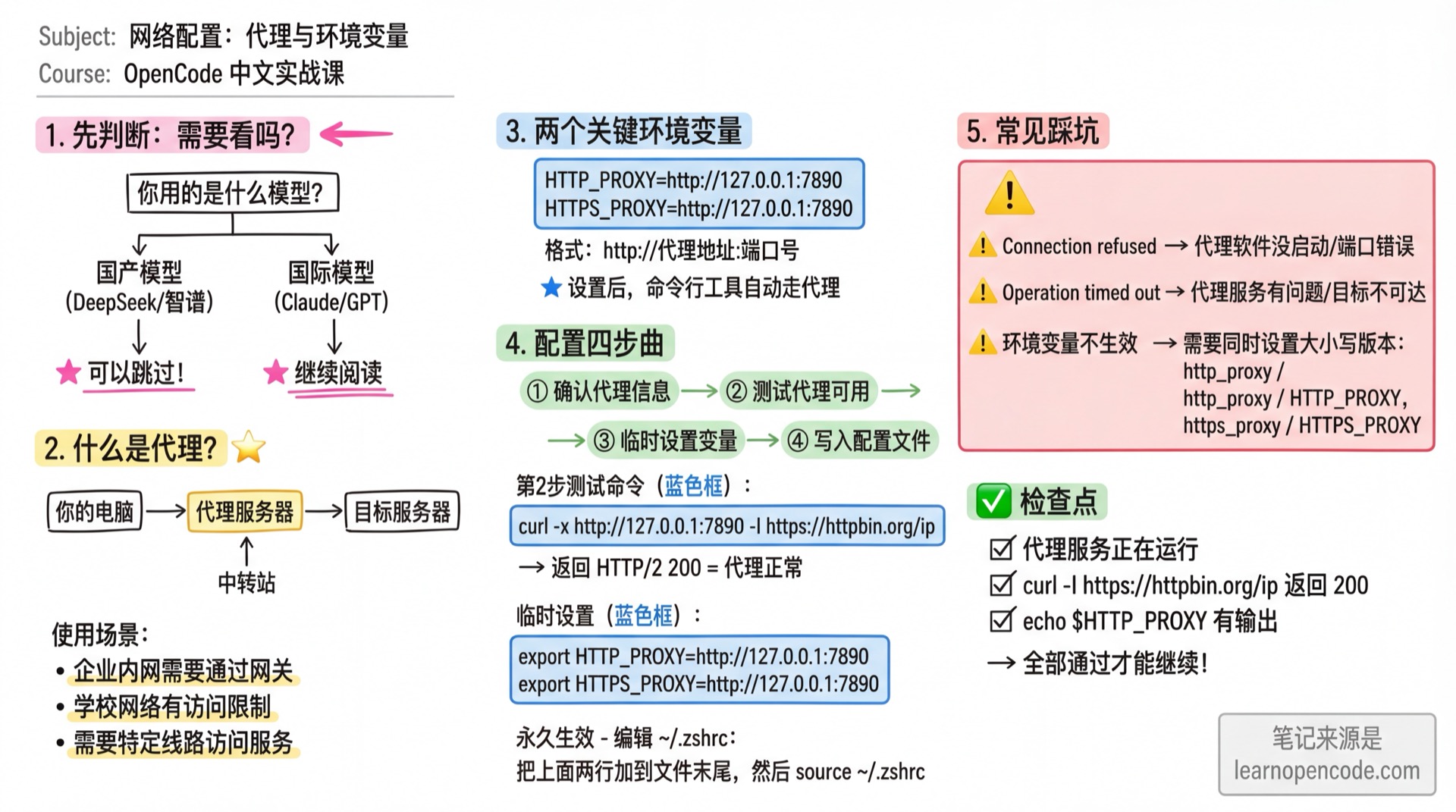
What This Lesson Covers
In corporate environments, accessing external services often requires going through a proxy or firewall. This lesson teaches you how to configure environment variables so OpenCode can properly connect to AI services.
First Check: Do You Need This Lesson?
If you plan to use models with direct access (e.g., local models, models hosted within your corporate network): You can skip this lesson and go directly to 1.4 Connect Model.
If you need to use Claude, GPT, or other external AI models through a corporate network: Please continue reading.
What You'll Be Able to Do
- Configure HTTP proxy environment variables
- Verify network configuration is working
- Troubleshoot common network issues
Your Current Situation
- Installation succeeded, but connecting to models returns
connection timeout - Company/school network requires proxy configuration, but you don't know how to make OpenCode use it
- Configured proxy but still can't connect, unsure what's wrong
When to Use This Solution
- When you need: Access external services through corporate proxy/firewall
- And you don't want: Constant connection timeout errors
🎒 Before You Start
Make sure you have:
- [ ] Completed 1.2 Installation
- [ ] Your network environment supports accessing target services (or you have a proxy service)
- [ ] Know your proxy address and port (if unsure, consult your network administrator or IT department)
Core Concepts
What is a Proxy
A proxy server acts as an intermediary. Your requests go to the proxy first, then the proxy forwards them to the target server, and responses come back the same way.
Common scenarios requiring a proxy:
- Corporate intranets need a gateway to access external services
- School networks have access restrictions
- Firewall policies require specific routing for certain services
- Security compliance mandates traffic inspection
How OpenCode Uses Proxies
OpenCode reads proxy configuration through environment variables. You need to set:
HTTP_PROXY: Proxy address for HTTP requestsHTTPS_PROXY: Proxy address for HTTPS requests
Format: http://proxy-address:port-number
Once set, OpenCode and most command-line tools will automatically use the proxy.
Follow Along
Step 0: Confirm Your Proxy Information
You need two pieces of information:
- Proxy address: Usually
127.0.0.1(local proxy) or an address provided by your company - Port number: A number like
7890,8080,3128, etc.
💡 Don't know the port number?
Check your proxy software settings for "HTTP Port" or "Local Listening Port".
For corporate/school proxies, consult your IT department.
Step 1: Test if the Proxy Works
First, confirm the proxy itself is functional.
In your terminal, run (replace with your address and port):
curl -x http://127.0.0.1:7890 -I https://httpbin.org/ipSuccess:
HTTP/1.1 200 Connection established

HTTP/2 200
content-type: application/json
...
Seeing HTTP/2 200 means the proxy is working properly.
Failure Case 1: Connection Refused
curl: (7) Failed to connect to 127.0.0.1 port 7890: Connection refusedCause: Proxy service is not running, or port number is wrong. Confirm the proxy software is started and port number is correct.
Failure Case 2: Timeout
curl: (28) Operation timed outCause: Proxy service has issues, or target address is unreachable. Check proxy configuration.
Step 2: Set Environment Variables (Temporary)
Set temporarily first, then write to config file once confirmed working.
export HTTP_PROXY=http://127.0.0.1:7890
export HTTPS_PROXY=http://127.0.0.1:7890$env:HTTP_PROXY = "http://127.0.0.1:7890"
$env:HTTPS_PROXY = "http://127.0.0.1:7890"⚠️ Note
Replace 127.0.0.1:7890 with your actual proxy address and port.
Verify the setting:
echo $HTTP_PROXYShould output the value you set. On Windows, use $env:HTTP_PROXY.
Step 3: Verify Environment Variables Work
Now test without the -x parameter to see if environment variables take effect automatically:
curl -I https://httpbin.org/ipIf it returns HTTP/2 200, the environment variable configuration succeeded, and curl automatically used the proxy.
Step 4: Write to Config File (Permanent)
Temporary settings only work for the current terminal window. After writing to the config file, they'll take effect every time you open a terminal.
# Edit config file
nano ~/.zshrc

# Add at the end of the file:
export HTTP_PROXY=http://127.0.0.1:7890
export HTTPS_PROXY=http://127.0.0.1:7890

# Save and exit (Ctrl+X → Y → Enter)
# Reload config
source ~/.zshrcnano ~/.bashrc
# Add at the end of the file:
export HTTP_PROXY=http://127.0.0.1:7890
export HTTPS_PROXY=http://127.0.0.1:7890
# Save and exit, reload
source ~/.bashrc# Set user-level environment variables
[Environment]::SetEnvironmentVariable("HTTP_PROXY", "http://127.0.0.1:7890", "User")
[Environment]::SetEnvironmentVariable("HTTPS_PROXY", "http://127.0.0.1:7890", "User")
# Restart PowerShell for changes to take effect💡 How to know if you're using zsh or bash?
echo $SHELLOutput containing zsh means zsh, containing bash means bash. Newer macOS versions default to zsh.
Corporate Proxy Specifics
Authentication
Many corporate proxies require authentication:
export HTTP_PROXY=http://username:[email protected]:8080
export HTTPS_PROXY=http://username:[email protected]:8080
Security Note
Storing passwords in environment variables is not ideal. Consider using:
- Proxy authentication via credential managers
- NTLM/Kerberos authentication if supported
- Consult your IT security team for best practices
No Proxy (Bypass List)
Some addresses should bypass the proxy:
export NO_PROXY=localhost,127.0.0.1,.company.com,.internalCheckpoint ✅
All items must pass to continue
- [ ] Proxy service is running
- [ ]
curl -I https://httpbin.org/ipreturns 200 status code - [ ]
echo $HTTP_PROXYhas output
Troubleshooting
Issue 1: Connection refused
Full error:
curl: (7) Failed to connect to 127.0.0.1 port 7890: Connection refusedTroubleshooting steps:
- Is the proxy software running? Check taskbar/menu bar icon
- Is the port number correct? Open proxy software settings to confirm
- Some software requires enabling "Allow LAN connections" or "HTTP proxy" option
Issue 2: Operation timed out
Full error:
curl: (28) Operation timed out after 30001 millisecondsTroubleshooting steps:
- Is the proxy software connected properly? Check proxy software status
- Is the target service reachable? Test with a different address (e.g., https://httpbin.org)
- If using a remote proxy, check network connection
- Corporate network: Check if firewall rules are blocking the connection
Issue 3: Environment Variables Not Working
Symptom: Variables are set, but curl still times out
Troubleshooting steps:
- Confirm variables are set:
echo $HTTP_PROXY - Some tools require both uppercase and lowercase variables:bash
export http_proxy=http://127.0.0.1:7890 export https_proxy=http://127.0.0.1:7890 export HTTP_PROXY=http://127.0.0.1:7890 export HTTPS_PROXY=http://127.0.0.1:7890 - After writing to config file, need to
sourceor open a new terminal
Issue 4: Only Some Requests Go Through Proxy
Symptom: Some websites work, others don't
Possible causes:
- Proxy service routing rules issues
- Some addresses are excluded from proxy
- Corporate firewall blocking specific endpoints
Solution: Check proxy software rule settings, or consult your network administrator.
Issue 5: Corporate Firewall Blocking
Symptom: Proxy works for some sites but not AI API endpoints
Possible causes:
- Corporate firewall rules block AI service domains
- Deep packet inspection blocking encrypted traffic
- DNS filtering
Solutions:
- Consult your IT department about whitelist requirements
- Consider using models hosted within your corporate network
- Check if your organization has approved AI service endpoints
When You Don't Need a Proxy
If you only plan to use local models or models accessible within your corporate network, you don't need to configure a proxy. You can skip to the next lesson.
Lesson Summary
You learned:
- Understanding the role of proxies in corporate networks
- Configuring proxies through environment variables
- Verifying proxy is working
- Troubleshooting common issues including firewall problems
Next Lesson Preview
The next lesson is the highlight of Stage 1: Connect to an AI model and send your first message.
I'll tell you:
- What an API Key is and how to get one
- How to choose from different model options (free, cloud, local)
- Send your first message and see the AI's response
Having Issues?
Stuck on network configuration? Join the community to discuss with fellow learners and get real-time help.