

5.5 Permission Control
💡 One-line summary: Control what AI can and cannot do through permission configuration.
📝 Course Notes
Key knowledge points from this lesson:
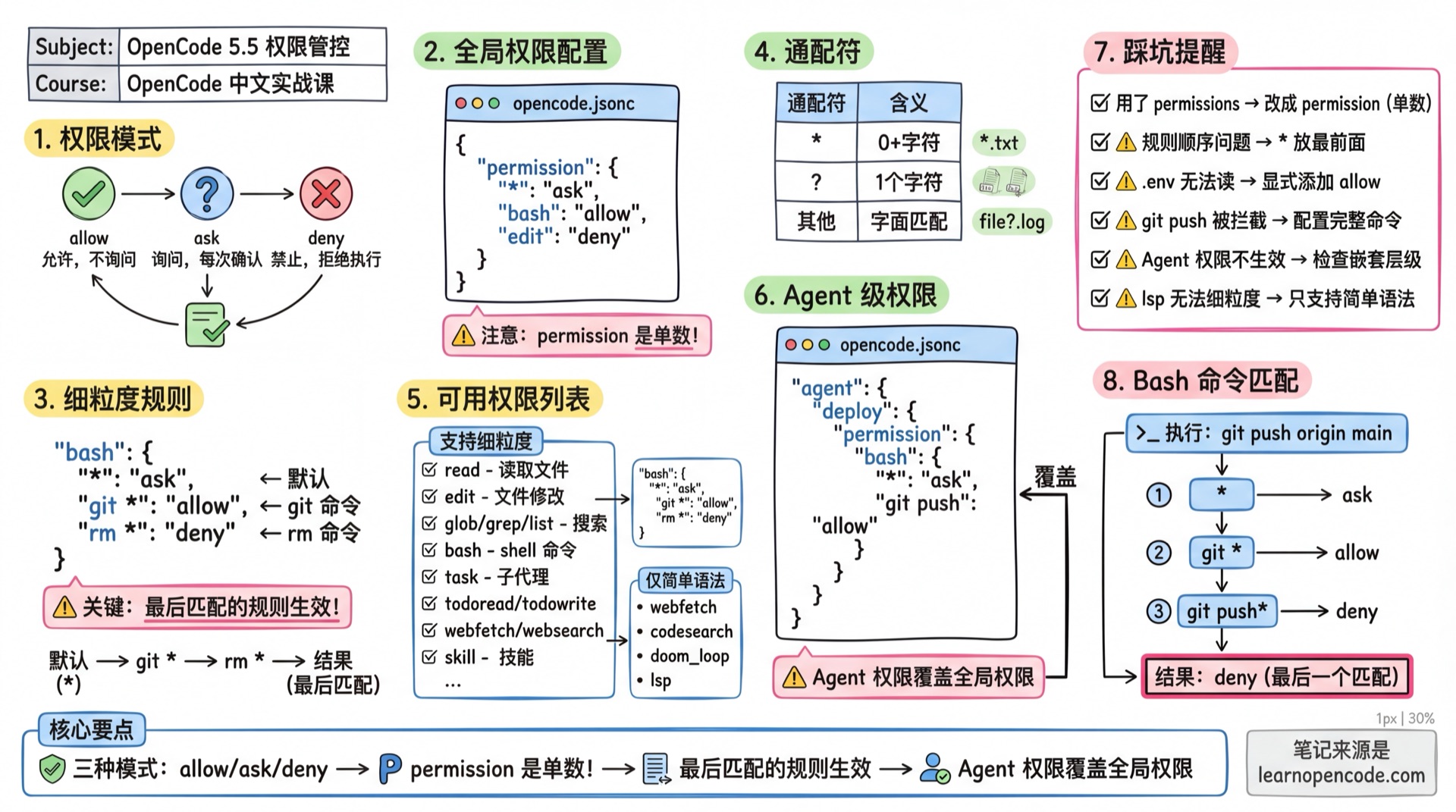
What You'll Be Able to Do
- Understand three permission modes
- Configure global permissions
- Configure fine-grained rules
- Configure Agent-level permissions
- Understand how Bash commands are matched
- Configure external directory access permissions (
external_directory)
Your Current Challenges
- Worried about AI executing dangerous commands
- Annoyed by confirmation prompts every time writing files
- Want to limit certain Agent's capabilities
- Always getting confirmation prompts when AI accesses files outside the project
When to Use This
- When you need: Fine-grained control over what AI can do
- And you don't want: To give AI too much freedom
Permission Modes
| Mode | Description |
|---|---|
allow | Allow execution without asking |
ask | Ask user for confirmation each time |
deny | Deny execution |
Boundaries of Automatic Approval Mode
Both the standard TUI and non-interactive run command publicly expose --auto:
# Standard TUI
opencode --auto

# Non-interactive task
opencode run --auto "Run the tests and fix any failures"
It automatically approves only permission requests that would otherwise enter the ask flow. It does not override explicit deny rules. For example, after configuring "rm *": "deny", matching deletion commands are still rejected even when you use --auto.
The target version also accepts the hidden --yolo flag as a compatibility alias and maps it to the same automatic-approval behavior as --auto. New commands and scripts should use the public --auto flag. This switch applies to the standard TUI and opencode run; the opencode --mini entry point does not forward it.
Source (v1.18.22):
tui.ts:108-121,tui.ts:287-295, andrun.ts:242-274
Global Permission Configuration
Use permission (note: singular) in opencode.json:
{
  "$schema": "https://opencode.ai/config.json",
  "permission": {
    "*": "ask",          // Default: all operations require confirmation
    "bash": "allow",     // Bash commands auto-approved
    "edit": "deny"       // Deny file editing
  }
}
Set all permissions at once:
{
  "permission": "allow"  // All operations auto-approved
}
Fine-Grained Rules (Object Syntax)
Apply different actions based on tool input:
{
  "permission": {
    "bash": {
      "*": "ask",                    // Default: require confirmation
      "git *": "allow",              // git commands allowed
      "npm *": "allow",              // npm commands allowed
      "rm *": "deny"                 // deny rm commands
    },
    "edit": {
      "*": "deny",                   // Default: deny editing
      "packages/web/src/content/docs/*.mdx": "allow"  // Only allow editing docs
    }
  }
}
Rule Priority: Rules are evaluated by pattern matching, the last matched rule wins.
A common pattern is to put wildcard "*" rules first, followed by more specific rules.
Wildcards
*matches zero or more arbitrary characters?matches exactly one character- Other characters match literally
Available Permissions List
Permissions Supporting Fine-Grained Rules
These permissions can use object syntax to configure different pattern rules:
| Permission | Description | Match Content |
|---|---|---|
read | Read files | File path |
edit | File modification permission (covers edit, write, and patch) | File path |
glob | File wildcard search | glob pattern |
grep | Content search | regex pattern |
list | List directory files | Directory path |
bash | Run shell commands | Parsed command prefix |
task | Start sub-agent | Sub-agent name |
skill | Load skill | Skill name |
lsp | Run LSP query | Supports fine-grained matching |
external_directory | Access paths outside project | Directory path |
📝 Note: The target version has no
multiedittool. File creation, editing, and patch operations are all controlled by theeditpermission.
Permissions Supporting Only Simple Syntax
These permissions can only be set to allow/ask/deny, object syntax not supported:
| Permission | Description |
|---|---|
todowrite | Update todo list |
webfetch | Fetch URL content (passes URL at runtime for always approval) |
websearch | Web search (passes query at runtime for always approval) |
doom_loop | Triggered when same tool call repeats 3 times |
⚠️ Note: The target version has no
plan_entertool implementation, so configuring a permission key with that name does not create a callable action. The experimentalplan_exittool does exist; when exposed, it is evaluated through the normal permission rules, and user rules can override its built-in default.
Source:
opencode/packages/opencode/src/config/config.ts:621-652
Default Values
- Most permissions default to
"allow" doom_loopandexternal_directorydefault to"ask".envfiles default to ask (not outright deny):
{
  "permission": {
    "read": {
      "*": "allow",
      "*.env": "ask",
      "*.env.*": "ask",
      "*.env.example": "allow"  // Example files allowed
    }
  }
}Source:
opencode/packages/opencode/src/agent/agent.ts:46-57
Agent Permission Matrix
OpenCode has four main built-in Agents, each with different default permissions:
| Tool/Permission | build | plan | general | explore |
|---|---|---|---|---|
| File read | ✅ | ✅ | ✅ | ✅ |
| File edit | ✅ | ❌ (only project-level or global plan files are allowed) | ✅ | ❌ |
| Shell commands | ✅ | ✅ | ✅ | ✅ |
| Web search/fetch | ✅ | ✅ | ✅ | ✅ |
| Code search | ✅ | ✅ | ✅ | ✅ |
| TODO management | ✅ | ✅ | ❌ | ❌ |
| Question tool | ✅ | ✅ | ❌ | ❌ |
plan_exit | ❌ | ✅ | ❌ | ❌ |
| External directory access | ⚠️ (default ask) | ⚠️ (default ask; also allows the global plans directory) | ⚠️ (default ask) | ⚠️ (default ask; inherits the common allowlist) |
📝 Note: External Directory Permission Details
All Agents require user confirmation (ask) by default when accessing external directories and inherit the common allowlist for temporary truncation directories, temporary directories, Skill directories, and Reference directories. Some Agents also have exceptions:
- build: Default ask
- plan: Default ask, but also allows
plans/*under the global data directory. Project-level.opencode/plans/*.mdis covered by theeditallowlist, not an external-directory exception - general: Default ask
- explore: Default ask and inherits the common allowlist for truncated output, temporary, Skill, and Reference directories
📝 Note: Detailed Agent Descriptions
Build Agent (Default)
- Mode:
primary - Permissions: All allowed
- Purpose: Default development Agent, all tools available
Plan Agent
- Mode:
primary - Permissions:
editdefaults to deny and allows only project-level or global plan files - Purpose: Read-only planning, doesn't modify code, ensures focused thinking during analysis phase
General Agent
- Mode:
subagent - Permissions:
todowriteandquestionare denied by default - Purpose: General research, multi-step tasks
Explore Agent
- Mode:
subagent - Permissions: All tools denied by default (
"*": "deny"), then only exploration-oriented reading, searching, and shell capabilities are allowed - Purpose: Quick code exploration
Source:
opencode/packages/opencode/src/agent/agent.ts:92-155
Plan Mode Special Rules
When AI attempts to access files outside the project working directory, the external_directory permission check is triggered.
Trigger Scenarios
The following tools trigger this permission when accessing paths outside the project:
| Tool | Trigger Condition |
|---|---|
read | Reading files outside project |
edit | Editing files outside project |
write | Writing files outside project |
patch | Patching files outside project |
bash | Commands involving paths outside project (e.g., cd .., rm /tmp/file) |
Detection Logic
OpenCode uses relative paths to determine if a file is inside the project:
// Source: opencode/packages/opencode/src/util/filesystem.ts:25-27
export function contains(parent: string, child: string) {
  return !relative(parent, child).startsWith("..")
}
If the relative path starts with .., the file is outside the project directory.
Default Behavior
{
  "permission": {
    "external_directory": "ask"  // Default: ask for confirmation for external paths outside the allowlist
  }
}
Common Configuration: Allow External Folder Access
If you want OpenCode to access external folders without requiring authorization each time, add the following configuration:
// opencode.json
{
  "permission": {
    "external_directory": "allow"
  }
}
This is one of the most common configurations, especially suitable for:
- Frequently accessing configuration directories like
~/.config/ - Project depends on files in other directories
- Using monorepo but only starting OpenCode in a subdirectory
Fine-Grained Control (By Path)
external_directory supports object syntax for path-based configuration:
{
  "permission": {
    "external_directory": {
      "*": "ask",                    // Default: require confirmation
      "/tmp/*": "allow",             // /tmp directory allowed
      "/home/user/shared/*": "allow", // Shared directory allowed
      "/etc/*": "deny"               // System config denied
    }
  }
}
Configuration Methods Summary
| Method | Configuration Location | Example |
|---|---|---|
| Global config | ~/.config/opencode/opencode.json | "external_directory": "allow" |
| Project config | project_root/opencode.json | "external_directory": "allow" |
| Environment variable | OPENCODE_PERMISSION | export OPENCODE_PERMISSION='{"external_directory": "allow"}' |
| Agent level | agent.xxx.permission | See example below |
Agent Level Configuration
{
  "agent": {
    "file-manager": {
      "description": "File management Agent, can access external directories",
      "permission": {
        "external_directory": "allow"
      }
    },
    "safe-agent": {
      "description": "Safe Agent, cannot access external directories",
      "permission": {
        "external_directory": "deny"
      }
    }
  }
}
How Bash Commands Are Matched
OpenCode parses Bash commands into readable command prefixes before matching. Parsing rules are based on the command's "arity" (number of arguments).
Parsing Examples
| Input Command | Parsed Match Pattern |
|---|---|
git checkout main | git checkout |
npm install | npm install |
npm run dev | npm run dev |
docker compose up | docker compose up |
rm -rf node_modules | rm |
Common Command Arity
| Command Prefix | Arity | Description |
|---|---|---|
git | 2 | Matches git <subcommand> |
npm | 2 | Matches npm <subcommand> |
npm run | 3 | Matches npm run <script> |
docker | 2 | Matches docker <subcommand> |
docker compose | 3 | Matches docker compose <subcommand> |
rm | 1 | Only matches rm |
Source:
opencode/packages/opencode/src/permission/arity.ts
Practical Configuration Examples
{
  "permission": {
    "bash": {
      "*": "ask",
      "git status": "allow",
      "git diff": "allow",
      "git log*": "allow",
      "npm run*": "allow",
      "rm*": "deny"           // Deny all delete operations
    }
  }
}
Ask Behavior
When OpenCode prompts for approval, it provides three options:
| Option | Behavior |
|---|---|
once | Approve only this request |
always | Approve future requests matching the suggested pattern (current session) |
reject | Reject the request |
How always Works
When selecting always, OpenCode uses the tool's suggested safe pattern to approve subsequent requests.
For example, when approving git status --porcelain, the suggested pattern might be git status*, so all subsequent git status related commands will be auto-approved.
Feedback on Rejection
When user rejects, they can choose:
- Direct rejection: AI receives "user rejected this tool call" and will try other methods
- With feedback: Can tell AI why rejected, guiding it to adjust direction
Agent-Level Permissions
Permissions can be overridden per agent, agent rules take precedence over global configuration:
{
  "permission": {
    "bash": {
      "*": "ask",
      "git status": "allow"
    }
  },
  "agent": {
    "deploy": {
      "permission": {
        "bash": {
          "*": "ask",
          "git status": "allow",
          "git push": "allow"     // Only deploy agent can push
        }
      }
    }
  }
}
Markdown Agent Configuration
Configure permissions in Markdown agents:
---
description: "Read-only code review"
mode: "subagent"
permission:
  edit: "deny"
  bash: "ask"
  webfetch: "deny"
---

Only analyze code and suggest changes, don't execute any modifications.Note: Agent permissions merge with global permissions, rules in Agent take precedence.
Deprecated Configuration Migration
Since v1.1.1, the old tools configuration has been deprecated, migrate to permission:
// ❌ Old syntax (deprecated, but still backward compatible)
{
  "tools": {
    "bash": true,
    "edit": false
  }
}

// ✅ New syntax
{
  "permission": {
    "bash": "allow",
    "edit": "deny"
  }
}
Old configuration still works, OpenCode will automatically convert to new format.
Security Best Practices
1. Protect Sensitive Files
{
  "permission": {
    "read": {
      "*": "allow",
      "*.env": "deny",
      "*.env.*": "deny",
      "*.key": "deny",
      "*.pem": "deny",
      "credentials/*": "deny"
    }
  }
}
.env File Protection
OpenCode protects all .env and .env.* files by default, but allows direct access to .env.example (example files don't contain sensitive information).
2. Restrict Dangerous Commands
{
  "permission": {
    "bash": {
      "*": "ask",
      "git *": "allow",
      "npm *": "allow",
      "rm -rf *": "deny",
      "sudo *": "ask",
      "chmod *": "ask"
    }
  }
}
3. Enterprise Environment Configuration
Configure strict permissions in global config file ~/.config/opencode/opencode.json:
{
  "permission": {
    "external_directory": "deny",
    "bash": "ask",
    "websearch": "deny",
    "webfetch": "deny"
  }
}
4. Development Environment Configuration
Configure relaxed permissions in project .opencode/opencode.json:
{
  "permission": {
    "read": {
      "*": "allow"
    },
    "edit": {
      "src/*": "allow",
      "test/*": "allow",
      "*.md": "allow"
    },
    "external_directory": "allow"
  }
}
Permission Troubleshooting
Problem: Operation Unexpectedly Denied
- Check if in Plan mode (Plan mode forbids editing source code)
- Check permission configuration in
opencode.json - Check if file pattern matching was triggered (check .env and other sensitive file rules)
Problem: Frequent Confirmation Prompts
- Use "Always allow" to reduce repeated confirmations
- Add
allowrules in configuration to override defaults - Use wildcards to match a category of operations
Problem: Permission Configuration Not Taking Effect
- Check if JSON syntax is correct
- Confirm configuration file path (project vs global)
- Ensure using
permission(singular) notpermissions(plural) - Restart OpenCode for configuration to take effect
Common Pitfalls
| Symptom | Cause | Solution |
|---|---|---|
| Permission config not working | Used permissions (plural) | Use permission (singular) |
| Command unexpectedly blocked | Rule order issue | Last matched rule wins, put * first |
| Cannot read .env | Denied by default | Explicitly add allow rule |
todowrite: {...} error | Only supports simple syntax | Change to todowrite: "allow" |
git push matched as git | Incomplete command config | Configure "git push": "allow" |
| Agent permissions not working | Wrong nesting level | Ensure under agent.name.permission |
| Always prompts for external file access | external_directory defaults to ask | Set "external_directory": "allow" |
| Want to deny certain external paths | Need fine-grained control | Use object syntax to configure by path |
Lesson Summary
You learned:
- Three permission modes (allow/ask/deny)
- Using
permissionconfiguration (singular) - Distinguishing permissions supporting object syntax vs simple syntax
- Common permission fields (read, edit, glob, grep, list, bash, task, skill, lsp, external_directory, todowrite, webfetch, websearch, doom_loop, question)
- Note:
writeandpatchoperations use theeditpermission
- Note:
- Permission matrix for four built-in Agents (build/plan/general/explore)
- Bash command Arity parsing mechanism
alwayspattern matching behavior- Agent-level permission override
- External directory access permission (
external_directory) configuration methods - Security best practices (protect sensitive files, restrict dangerous commands, enterprise/development environment configuration)
- Permission troubleshooting (operation denied, frequent confirmation prompts, configuration not working)
Related Resources
- 5.2 Custom Agents - Agent configuration
- 5.1a Configuration Basics - Configuration file introduction
Next Lesson Preview
In the next lesson, we'll learn about theme and keyboard shortcut customization.