

Frequently Asked Questions (FAQ)
📝 Course Notes
Key takeaways from this lesson:
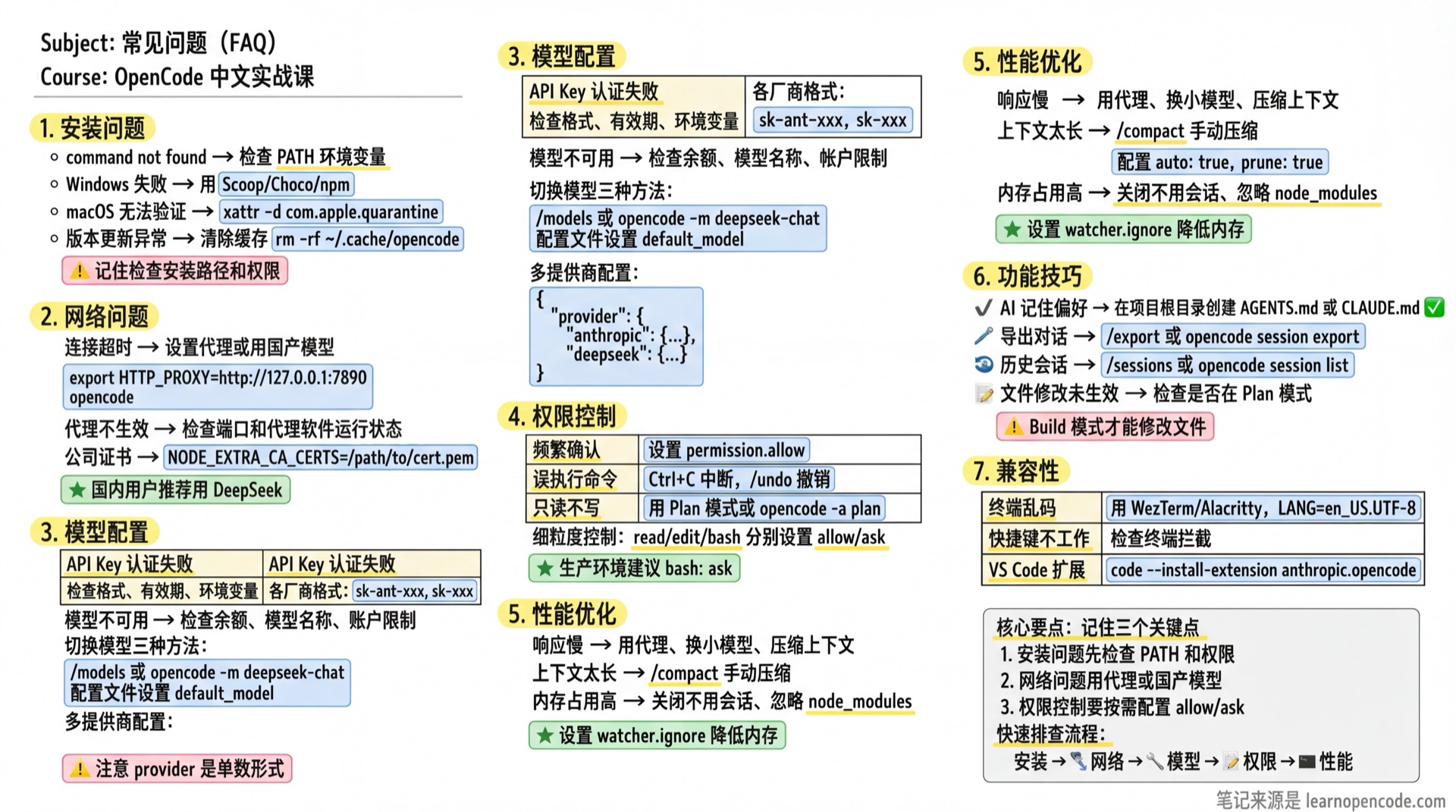
Having issues? Check here first
Installation Issues
Q: Install command returns "command not found"
A: Your PATH environment variable may not be set correctly.
# Check installation location
which opencode

# If no output, manually add to PATH
# macOS/Linux
echo 'export PATH="$HOME/.local/bin:$PATH"' >> ~/.bashrc
source ~/.bashrc

# Or use npm global install
npm install -g @anthropic-ai/opencode
Q: Installation fails on Windows
A: We recommend using a package manager:
# Using Scoop
scoop install opencode

# Or using Chocolatey
choco install opencode

# Or using npm
npm install -g @anthropic-ai/opencode
Make sure to run the terminal as Administrator.
Q: macOS shows "cannot verify developer"
A: This is a macOS security restriction.
# Method 1: Right-click the app and select "Open"
# Method 2: Run in terminal
xattr -d com.apple.quarantine /path/to/opencode
Q: Features break after version update
A: Try clearing the cache and reinstalling:
# Clear cache
rm -rf ~/.cache/opencode

# Reinstall
opencode upgrade --force
Network Issues
Q: Connection timeout with "ETIMEDOUT" or "ECONNREFUSED"
A: This is a network connectivity issue.
Solution 1: Set up proxy
export HTTP_PROXY=http://127.0.0.1:7890
export HTTPS_PROXY=http://127.0.0.1:7890
opencode
Solution 2: Use alternative providers
# Switch to providers with better regional access
opencode
/connect # Select your preferred providerQ: Proxy is set but still cannot connect
A: Check the following:
- Confirm proxy software is running
- Verify proxy port is correct
- Check if NO_PROXY needs to be set
- Test with
curl:
curl -x http://127.0.0.1:7890 https://api.anthropic.comQ: How to handle corporate network certificates
A: Set custom certificates:
export NODE_EXTRA_CA_CERTS=/path/to/certificate.pem
opencode
Or configure in the config file:
{
  "network": {
    "ca_cert": "/path/to/certificate.pem"
  }
}
Q: API blocked by corporate firewall
A: Corporate firewalls often block API endpoints. Try these solutions:
- Use a corporate-approved VPN if available
- Self-hosted models: Deploy local models like Ollamabash
# Install Ollama curl -fsSL https://ollama.com/install.sh | sh # Run a model ollama run codellama # Configure OpenCode to use local model opencode /connect # Select Ollama - Request firewall exception from IT for specific API domains
- Use proxy with authentication:bash
export HTTPS_PROXY=http://corporate-proxy:8080
export NO_PROXY=localhost,127.0.0.1,internal.company.com
International User Issues
Q: API access from restricted regions
A: Some regions have limited access to certain AI providers:
Use alternative providers available in your region:
- Europe: Mistral, DeepSeek
- Asia: Z.AI (Zhipu), DeepSeek, Moonshot
- Global: OpenAI, Anthropic (may require VPN)
Configure regional endpoints if available:
json{ "provider": { "anthropic": { "options": { "baseURL": "https://your-regional-endpoint.com" } } } }Use local models for complete offline access
Q: International payment issues for API credits
A: Many AI providers accept international payments, but options vary:
| Provider | Payment Methods | Regional Notes |
|---|---|---|
| OpenAI | Credit/Debit cards, PayPal | Most regions supported |
| Anthropic | Credit/Debit cards | US/UK/EU preferred |
| DeepSeek | Alipay, WeChat Pay, cards | Good for Asia |
| Mistral | Credit cards | EU-focused |
| Z.AI | Alipay, cards | China-focused |
Tips:
- Use virtual cards (like Revolut, Wise) for international payments
- Check if provider offers prepaid credits
- Consider third-party API aggregators (OpenRouter, Together AI)
Q: Latency issues from different regions
A: Optimize for your region:
Choose nearby regions:
json{ "provider": { "openai": { "options": { "baseURL": "https://api.openai.com/v1" // or regional endpoint } } } }Use smaller models for faster response
Enable streaming for perceived performance:
json{ "stream": true }Consider local models for zero latency
Q: Data residency and compliance requirements
A: For organizations with data residency requirements:
Check provider data centers:
- AWS Bedrock: Multiple regions (us-east, eu-west, ap-northeast)
- Azure OpenAI: Available in multiple Azure regions
- Google Vertex AI: Global regions available
Use self-hosted models for complete data control
Review provider compliance (SOC2, GDPR, HIPAA)
Configure data processing agreements with your provider
Model Configuration Issues
Q: API Key is set but getting "authentication failed"
A: Check the following:
API Key format is correct: Different providers have different formats
- Anthropic:
sk-ant-xxx - OpenAI:
sk-xxx - DeepSeek:
sk-xxx
- Anthropic:
API Key is valid: Test on the provider's website
Environment variable is set correctly:
bashecho $ANTHROPIC_API_KEY # Check if it has a valueConfig file syntax is correct:
bashcat ~/.config/opencode/opencode.json | jq . # Check JSON format
Q: Getting "model unavailable" or "quota exceeded"
A:
- Quota exhausted: Check your provider account balance
- Wrong model name: Verify the model identifier is correct
- Account restrictions: Some models require paid accounts
# List available models
opencode models
Q: How to switch between different models
A:
Method 1: Switch in TUI
/modelsMethod 2: Specify via command line
opencode -m deepseek-chatMethod 3: Set default in config file
{
  "model": "deepseek-chat"
}
Q: How to configure multiple providers
A: Add multiple providers in the config file:
{
  "provider": {
    "anthropic": {
      "options": {
        "apiKey": "{env:ANTHROPIC_API_KEY}"
      }
    },
    "deepseek": {
      "options": {
        "apiKey": "{env:DEEPSEEK_API_KEY}"
      }
    },
    "openai": {
      "options": {
        "apiKey": "{env:OPENAI_API_KEY}"
      }
    }
  }
}
Then switch with /models.
Permission Issues
Q: Confirming every action is annoying
A: You can set permission modes:
Method 1: Auto-allow for this session
- Press
akey to select "always allow"
Method 2: Set in config file
{
  "permission": {
    "read": "allow",
    "edit": "allow",
    "bash": "allow"
  }
}
Method 3: Fine-grained control
{
  "permission": {
    "read": "allow",
    "edit": "ask",
    "bash": "ask"
  }
}
Q: AI executed a command I didn't want
A:
- Press
Ctrl+Cto interrupt immediately - Use
/undoto revert file changes - Set stricter permissions:
{
  "permission": {
    "bash": "ask"
  }
}
Q: How to restrict AI to read-only mode
A: Use Plan mode:
- Press
Tabto switch to Plan mode - Or specify Agent at startup:bash
opencode -a plan
Performance Issues
Q: Response is very slow
A: Possible causes and solutions:
- Network latency: Use proxy or switch to local models
- Model too large: Use smaller models (like
small_model) - Context too long: Use
/compactto compress context
Q: Context too long causing errors
A:
# Manual compression
/compact

# Compression options in config
{
  "compaction": {
    "auto": true,
    "prune": true
  }
}
auto: Automatically compress when context is full;prune: Remove old tool outputs to save tokens
Q: High memory usage
A:
- Close unused sessions
- Configure file watcher to ignore directories:json
{ "watcher": { "ignore": ["node_modules/**", "dist/**", ".git/**"] } } - Use smaller models
Feature Issues
Q: How to make AI remember my preferences
A: Use AGENTS.md or CLAUDE.md files:
<!-- AGENTS.md -->
# Project Rules

- Use TypeScript
- Use pnpm instead of npm
- Code comments in English
- Follow ESLint rules
Or run /init to auto-generate.
Q: Can't find previous sessions
A:
# List all sessions
opencode session list

# View in TUI
/sessions
Sessions are stored in ~/.local/share/opencode/sessions/.
Q: How to export conversation history
A:
# Export in TUI
/export

# Export via command line
opencode session export <session-id> -o conversation.md
Q: File changes not taking effect
A: Check the following:
- Confirm you're in Build mode (not Plan mode)
- Check file permissions
- See if permission prompts were ignored
- Use
/detailsto view operation details
Q: Git undo/redo not working
A:
- Confirm project is a Git repository
- Confirm there are uncommitted changes
- Check Git status:bash
git status
Compatibility Issues
Q: Terminal shows garbled characters
A:
- Use recommended terminals: WezTerm / Alacritty / iTerm2
- Set correct encoding:bash
export LANG=en_US.UTF-8 - Use supported fonts (Nerd Fonts recommended)
Q: Keyboard shortcuts not working
A:
- Check if terminal intercepts shortcuts
- Some terminals need special configuration
- Try using slash commands instead
Q: Can't find VS Code extension
A:
# Manually install extension
code --install-extension anthropic.opencode

# Or search "OpenCode" in VS Code
Other Issues
Q: How to get help
A:
- View help:
/help - View docs: opencode.ai/docs
- Submit Issue: github.com/vbgate/learn-opencode
Q: How to report bugs
A:
Collect information:
bashopencode --version uname -a echo $SHELLSteps to reproduce
Submit Issue on GitHub
Q: How to contribute code
A:
- Fork the repository
- Create a branch
- Submit a PR
- Wait for review
Related Resources
- Troubleshooting - Detailed troubleshooting
- Network Configuration - Network issue solutions
- Model Providers - Available model list
Can't find your answer?
Join the community to connect with 2000+ fellow learners and get real-time support.