

2.1b How to Copy Content
💡 First Question from Beginners: "Why does the program exit when I press Ctrl+C?!"
📝 Course Notes
Key takeaways from this lesson:
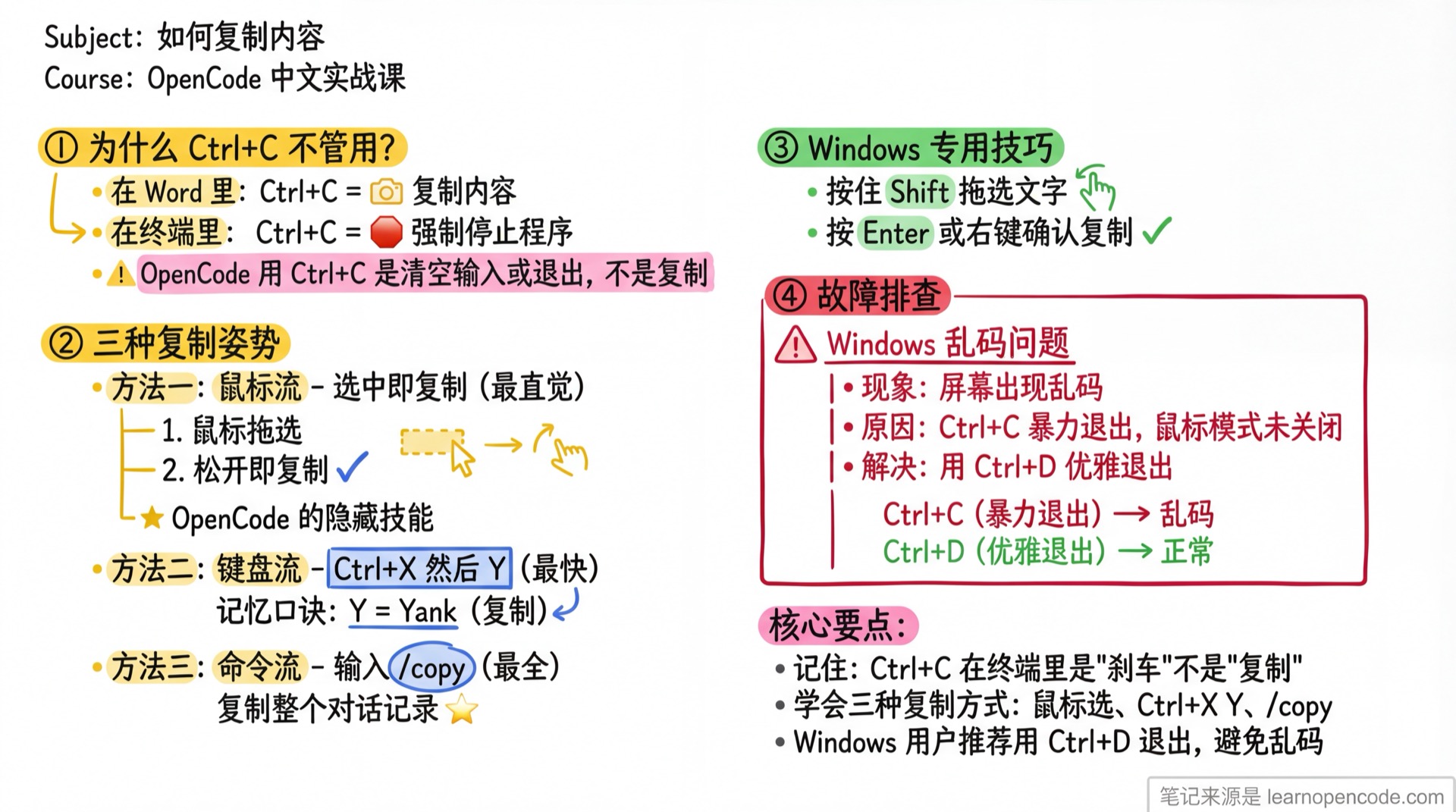
What You'll Learn
- Understand why Ctrl+C doesn't work for copying
- Master the "magic" of copy-on-selection with your mouse
- Learn to copy AI's long responses with one keystroke
- Solve text selection issues in Windows terminals
💥 Why Doesn't Ctrl+C Work?
For users accustomed to Word and browsers, this might be the biggest culture shock.
In the terminal world (the black box where OpenCode runs), Ctrl+C is typically used as an interrupt signal, not a copy shortcut.
- In Word:
Ctrl+C= 📷 Take a snapshot (copy content) - In Terminal:
Ctrl+C= 🛑 Interrupt
Therefore, pressing Ctrl+C in OpenCode doesn't copy the selected content.
🚀 Method 1: Mouse Flow (Most Intuitive)
This is a "hidden skill" specially designed by OpenCode for modern users, works on both Windows and Mac.
Steps
- Press and hold the left mouse button, drag to select the text you want to copy.
- Release the left mouse button.
- Done! 🎉
Yes, you read that right. You don't need to right-click or press any key. The moment you release the mouse, OpenCode automatically copies the selected content to the clipboard and shows Copied to clipboard.
⌨️ Method 2: Keyboard Flow (Fastest)
When you only want what the AI just said (like a big chunk of code), dragging with the mouse is too tedious.
Steps
- Press the Leader key (default is Ctrl+X).
- Release all keys.
- Press Y.
Memory trick: Y = Yank (this is programmer slang for "copy").
Want more shortcuts? Check out 2.3 Recommended Shortcuts.
📜 Method 3: Command Flow (Most Complete)
When you want to save the entire conversation history (what you said + what the AI said) to share with friends or save to a document.
Steps
- Type
/copyin the input box. - Press Enter.
The entire conversation history will be copied completely.
🛡️ Last Resort: Force System Copy
If the "magic" above doesn't work, or you just want to use the native system copy method.
| System | Operation |
|---|---|
| Mac | Hold Option (⌥) + mouse drag select → Command+C |
| Windows (before v1.1.64) | Hold Shift + mouse drag select → Right click or Enter |
| Windows (v1.1.64+) | Direct mouse drag select → auto copy or Ctrl+C |
Use Cases:
- When OpenCode is frozen and unresponsive
- When you want to precisely copy error messages
- When the terminal window is hijacked by another program
Follow Along
Step 1: Experience Ctrl+C
- Type a few characters in the input box (don't send it).
- Press Ctrl+C.
- Did the input box get cleared? That's because Ctrl+C was recognized as an interrupt signal.
Step 2: Experience "Auto Copy"
- Let the AI say something (e.g., type
hi). - Use your mouse to select a few words from the AI's response.
- Release the mouse.
- Open a notepad and press
Ctrl+Vto paste. - Did it work?
Step 3: Experience "Force Copy"
- Go back to OpenCode.
- Mac users: Hold Option, Windows users: Hold Shift.
- Drag select some text with your mouse.
- This method bypasses OpenCode and uses the terminal system's selection function directly.
🚑 Troubleshooting: What If Garbled Text Appears?
Symptom: If you're a Windows user, after pressing Ctrl+C to exit, you might see garbled text like [555;38;16M appearing on screen when you move the mouse.
Cause:
- OpenCode enables "mouse tracking mode" on startup.
Ctrl+Con Windows is a forceful termination signal (SIGINT).- This causes OpenCode to be killed before it can tell the terminal to "disable mouse tracking".
- The terminal thinks you're still in the program and keeps sending mouse coordinates to the screen, which appears as garbled text.
🐛 Known Issue: As of OpenCode v1.1.25, this issue is not fully resolved on Windows. This is a low-level technical limitation, we recommend following the table below.
Solutions:
- Quick Fix: Close the current terminal window and reopen it.
- Prevention (Highly Recommended): Don't use
Ctrl+Cto exit! Use Ctrl+D instead.
| Exit Method | Nature | Result |
|---|---|---|
| Ctrl+C | 🔪 Force Kill | Prone to mouse garbled text, not recommended |
| Ctrl+D | 👋 Graceful Exit | Clean exit with automatic cleanup, recommended |
Tip:
Ctrl+Dtriggers OpenCode's cleanup logic, ensuring mouse mode is properly disabled.
🎉 Good News: Major Windows Experience Improvements (v1.1.64+)
🪟 Windows Exclusive: If you're using OpenCode v1.1.64 or later, congratulations!
Starting from v1.1.64, the text selection experience on Windows has been greatly improved:
| Improvement | Before | Now |
|---|---|---|
| Mouse selection | Required holding Shift | Direct drag select works |
| Ctrl+C copy | Not supported | Supports manual copy of selected content |
Now Windows users can:
- Select text directly with the mouse like a normal text editor
- Press
Ctrl+Cto manually copy after selection (if auto copy doesn't trigger)
📌 Version Check: Type
/versionto check your OpenCode version.
📚 Further Reading
Want to master more shortcuts? 👉 2.3 Recommended Shortcuts
Want to customize shortcuts (like changing Ctrl+C back)? 👉 5.6b Shortcut Customization
Next Lesson Preview
Next lesson: AI's Basic Tools.
You'll learn:
- What are the 6 basic tools AI has and what each does
- The "read before write" rule and edit's smart matching
- Why you shouldn't let AI use bash for file operations
Appendix: Source Code Reference
Click to expand source code locations
Last updated: 2026-02-14 (v1.1.64)
OpenCode's "copy on mouse release" logic is not a terminal default behavior, but an advanced feature written in code:
| Feature | File Path | Key Logic |
|---|---|---|
| Mouse copy logic | src/cli/cmd/tui/app.tsx | onMouseUp event listener |
| Clipboard utility | src/cli/cmd/tui/util/clipboard.ts | Cross-platform clipboard support |
| Windows selection improvement (v1.1.64) | Search keywords windows, win32, selection | packages/opencode/src/ |
Source code search command:
grep -rn "windows\|win32\|selection" packages/opencode/src/Core code snippet (app.tsx):
// When mouse is released
onMouseUp={async () => {
  // 1. Get selected text
  const text = renderer.getSelection()?.getSelectedText()
  if (text && text.length > 0) {
    // 2. Call clipboard API to copy
    await Clipboard.copy(text)
    // 3. Notify user
    toast.show({ message: "Copied to clipboard" })
    // 4. Clear selection state
    renderer.clearSelection()
  }
}}