

Essential Keyboard Shortcuts
💡 TL;DR: Master these 15 shortcuts to double your daily productivity.
📝 Course Notes
Key takeaways from this lesson:
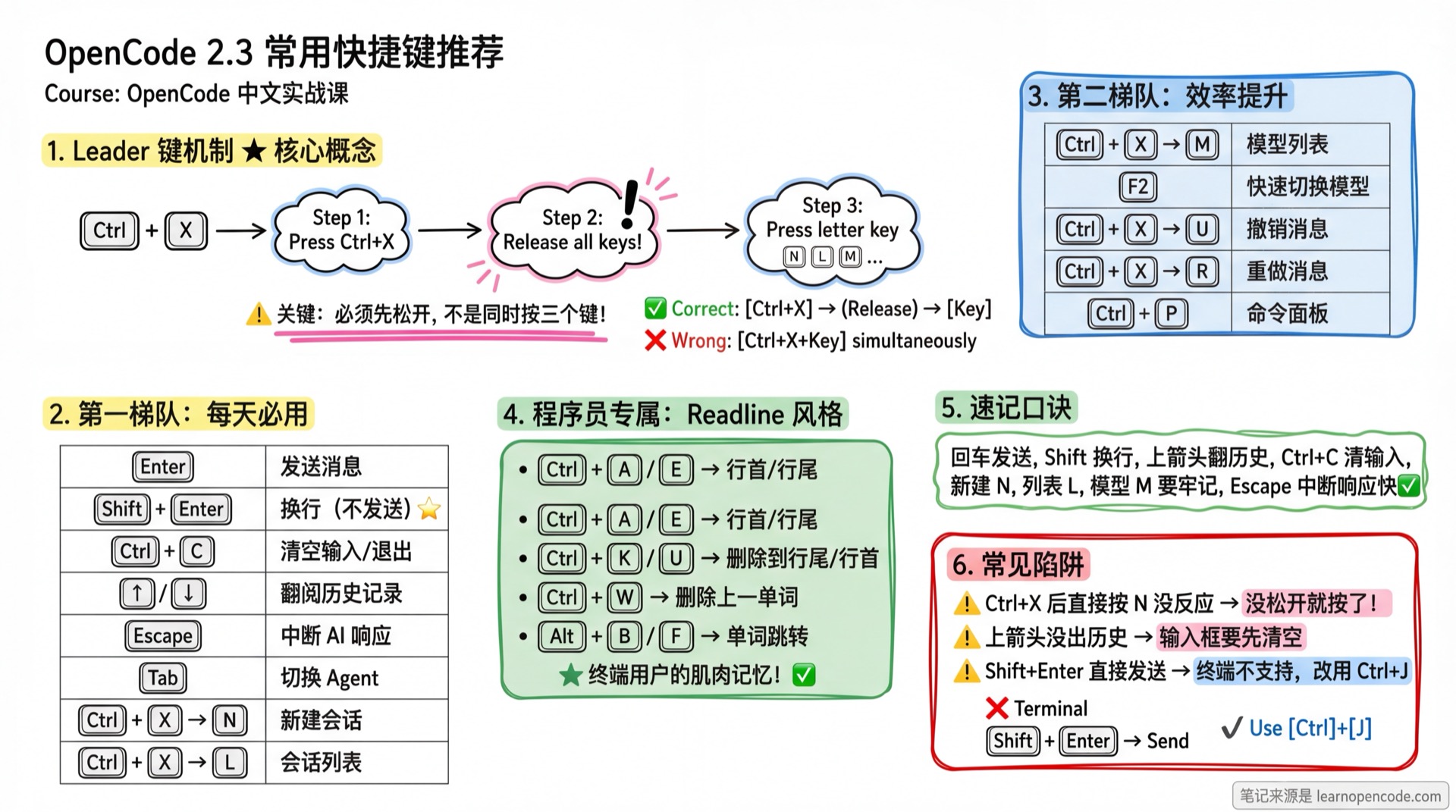
What You'll Be Able to Do
- Quickly create/switch sessions with shortcuts
- One-key model and Agent switching
- Quickly undo, redo, and copy messages
- Navigate long conversations with page keys
Your Current Pain Points
- Typing
/newevery time to create a new session - Typing
/modelsto switch models - Not knowing how to undo operations
- Slowly scrolling through long conversations
When to Use This
- When you need to: work frequently in OpenCode
- And don't want to: type commands every time
🎒 Prerequisites
Make sure you've completed the following:
- [ ] Completed 2.1 Interface & Operations
- [ ] Can have normal conversations with AI
Core Concepts
The Leader Key Mechanism (Important!)
OpenCode uses a Leader key (default Ctrl+X) as a shortcut prefix to avoid conflicts with terminal shortcuts.
🤔 What is a Leader Key?
A Leader key is similar to Vim's <Leader> or "combo keys" in games. It's not a function key itself, but a prefix key.
After pressing the Leader key, OpenCode waits for you to press a letter key. The combination forms a complete shortcut.
How to Use (Three-Step Method):
┌─────────────────────────────────────────────────────────────┐
│  Step 1           Step 2           Step 3                   │
│  Press Ctrl+X  →  Release all  →  Press letter (e.g. N)     │
│                                                             │
│  ⚠️ Key: Step 2 must release! Don't hold all three keys!    │
└─────────────────────────────────────────────────────────────┘Examples:
| What You Want | Correct Operation | Wrong Operation |
|---|---|---|
| New session | Press Ctrl+X → Release → Press N | ❌ Press Ctrl+X+N simultaneously |
| Open session list | Press Ctrl+X → Release → Press L | ❌ Hold Ctrl, press X then L |
| Switch model | Press Ctrl+X → Release → Press M | ❌ Press too fast without releasing |
💡 Practice Tip
Initially, deliberately slow down: after pressing Ctrl+X, mentally count "1", then press the letter key. You'll naturally speed up with practice.
Selection Criteria
From 60+ shortcuts, selected based on:
- High frequency - Used almost daily
- Time-saving - Much faster than typing commands
- Easy to remember - Follows a pattern
15 Essential Shortcuts
🔥 Tier 1: Daily Essentials
These 8 are the most frequently used - memorize these first:
| Shortcut | Function | Notes |
|---|---|---|
| Enter | Send message | Enter to send |
| Shift+Enter | New line (don't send) | Use when writing multi-line prompts |
| Ctrl+C | Clear input / Close dialog / Exit | See details below |
| Escape | Interrupt AI response | Press while AI is generating to stop immediately. Press twice to force interrupt |
| ↑ / ↓ | Browse input history | When input is empty, use arrow keys to recall previous messages |
| Tab | Switch Agent | Switch between Plan/Build/different Agents |
| Ctrl+X → N | New session | Leader + N = New |
| Ctrl+X → L | Session list | Leader + L = List |
💡 Multiple Ways to Create New Lines
Besides Shift+Enter, you can also use:
- Ctrl+Enter
- Alt+Enter
- Ctrl+J
Just pick one that feels natural.
📦 Three Behaviors of Ctrl+C (v1.1.58 update)
- When dialog is open: Close dialog (confirmations, selections, etc.)
- When input has content: Clear input box (doesn't exit)
- When input is empty: Exit OpenCode
⚠️ Note: Although both Ctrl+C and Ctrl+D can exit, their behaviors differ slightly. Ctrl+D sends a direct exit signal, while Ctrl+C first tries to clear the input. This matches terminal behavior that programmers are familiar with.
⚡ Tier 2: Productivity Boosters
These 5 significantly improve efficiency:
| Shortcut | Function | Memory Tip |
|---|---|---|
| Ctrl+X → M | Model list | Model |
| F2 | Quick switch recent model | IDE standard |
| Ctrl+X → U | Undo message | Undo |
| Ctrl+X → R | Redo message | Redo |
| Ctrl+P | Command palette | Same as VS Code |
🎯 Tier 3: Nice to Have
These 5 are useful in specific scenarios:
| Shortcut | Function | Use Case |
|---|---|---|
| Ctrl+X → Y | Copy message | Copy AI response |
| Ctrl+X → C | Compress context | When conversation is too long |
| Ctrl+X → B | Toggle sidebar | View session tree |
| PageUp / PageDown | Page navigation | Browse long conversations |
| Ctrl+X → T | Theme list | Change the look |
🧑💻 For Programmers: Input Box Shortcuts
If you've used terminals or Emacs, these will be familiar:
| Shortcut | Function | Readline Style |
|---|---|---|
| Ctrl+A | Jump to line start | ✅ |
| Ctrl+E | Jump to line end | ✅ |
| Ctrl+K | Delete cursor to line end | ✅ |
| Ctrl+U | Delete cursor to line start | ✅ |
| Ctrl+W | Delete previous word | ✅ |
| Alt+B | Back one word | ✅ |
| Alt+F | Forward one word | ✅ |
📦 What is Readline Style?
Readline is the standard input library for Unix/Linux terminals that defines a common set of shortcuts.
Almost all terminal programs (bash, zsh, python REPL) support these shortcuts. If you work in a terminal daily, these are already muscle memory.
OpenCode fully supports Readline, letting you edit text with familiar keystrokes.
Follow Along
Step 1: Practice Multi-line Input
Why
When writing multi-line prompts, you need to create new lines without sending.
- Type
First linein the input box - Press Shift+Enter
- Type
Second line
You should see: Two lines of text in the input box, message not sent
⚠️ Common Issue
If Shift+Enter sends instead of creating a new line, your terminal doesn't support modifier keys. Solutions:
- Use Ctrl+J instead (more universal)
- Or refer to 5.6b Keybinds to configure your terminal
Step 2: Practice History Navigation
Why
Resend or modify previous messages without retyping.
- First send a message:
Hello - After AI replies, make sure the input box is empty
- Press ↑ (up arrow)
You should see: The input box automatically fills with Hello that you just sent
Continue pressing ↑ to browse older history, press ↓ to go to more recent messages.
Step 3: Practice Ctrl+C
Why
Quickly clear input, close dialogs, or exit OpenCode.
Scenario A - Clear Input:
- Type some text in the input box
- Press Ctrl+C
You should see: Input box is cleared
Scenario B - Close Dialog:
- Trigger a dialog (e.g., press Ctrl+X → L to open session list)
- Press Ctrl+C
You should see: Dialog closes, returns to normal conversation interface
Scenario C - Exit Application:
- Make sure input box is empty and no dialog is open
- Press Ctrl+C
You should see: OpenCode exits
Step 4: Practice Leader Key Combinations
Why
This is OpenCode's core shortcut mechanism.
Important: This is a two-step operation, not simultaneous!
- Press Ctrl+X
- Release all keys (this step is crucial!)
- Press N
You should see: A new session is created
Try opening the session list:
- Press Ctrl+X
- Release
- Press L
You should see: Session list popup appears
Step 5: Practice Undo/Redo
Why
Retry when AI's response is unsatisfactory.
- Send a message to AI
- After AI replies, press Ctrl+X → U
You should see: The message and reply are undone
Press Ctrl+X → R to redo.
Step 6: Practice Interrupting Response
Why
Stop AI early when response is too long or going in the wrong direction.
- Send a complex question
- While AI is responding, press Escape
You should see: AI stops generating
Checklist ✅
Must pass all to continue
- [ ] Shift+Enter creates new line without sending
- [ ] ↑ browses input history (when input is empty)
- [ ] Ctrl+C clears input, closes dialogs
- [ ] Ctrl+X → N creates new session (remember to release before pressing N)
- [ ] Ctrl+X → L opens session list
- [ ] Escape interrupts AI response
Common Pitfalls
| Symptom | Cause | Solution |
|---|---|---|
| Shift+Enter sends instead of new line | Terminal doesn't send modifier keys | Use Ctrl+J, or configure terminal |
| Ctrl+X then N does nothing | Pressed N without releasing Ctrl+X | Must release first, then press N |
| Ctrl+X has no response | Terminal captured the key | Check terminal settings, or try a different terminal |
| Ctrl+C is not copy | Used to clear input or exit, not copy | To copy, use Ctrl+X → Y or select with mouse then Ctrl+V |
| Up arrow doesn't show history | Input box is not empty | First clear input box (Ctrl+C), then press up arrow |
| Tab doesn't switch Agent | Pressed while in input mode | Press Escape to exit input, then press Tab |
| Ctrl+Z accidentally suspends | Thought it was undo, actually suspends terminal | OpenCode will pause, need to type fg in terminal to resume. Don't use for "undo"! |
Quick Memory Rhyme
Enter sends, Shift for new line
Up arrow for history, Ctrl+C clears and exits
New is N, List is L, Model M remember well
Undo U, Redo R, Copy Y with ease
Escape interrupts fast
Tab switches Agents conveniently
Ctrl+Z will suspend, don't use for undo
Lesson Summary
You learned:
- New line technique: Shift+Enter for new line, Enter to send
- History navigation: When input is empty, ↑/↓ to browse history
- Ctrl+C: Close dialog / Clear input (has content) or Exit (empty)
- Leader key mechanism: Ctrl+X → Release → Letter key
- Session management: N (new), L (list), U (undo)
- Programmer bonus: Full Readline-style shortcut support
Want More?
- Quick Reference/Shortcuts - Complete 60+ shortcuts list
- 5.6b Keybinds - Custom shortcuts tutorial
Next Lesson Preview
Next we'll learn about Global Rules to make AI permanently remember your work preferences.
You'll learn:
- Create rule files, no need to say "reply in English" every time
- Difference between global rules vs project rules
- Practical rule examples
Appendix: Source Code Reference
Click to expand source code locations
Last updated: 2026-01-13
| Feature | File Path | Lines |
|---|---|---|
| Default shortcuts | src/config/config.ts | 616-754 |
| Shortcut parsing | src/util/keybind.ts | Entire file |
Key Defaults (from config.ts):
input_submit = "return"- Send message (line 668)input_newline = "shift+return,ctrl+return,alt+return,ctrl+j"- New line (lines 669-673)input_clear = "ctrl+c"- Clear input (line 666)app_exit = "ctrl+c,ctrl+d,<leader>q"- Exit application (line 617)history_previous = "up"- Previous history (line 747)history_next = "down"- Next history (line 748)agent_cycle = "tab"- Switch Agent (line 663)leader = "ctrl+x"- Leader key (line 616)session_new = "<leader>n"- New sessionsession_list = "<leader>l"- Session listmodel_list = "<leader>m"- Model listmessages_undo = "<leader>u"- Undo messagemessages_redo = "<leader>r"- Redo message