

Managing Sessions
💡 TL;DR: Use
/newto create a session,/sessionsto switch,/undoto revert,/exportto export, andopencode importto import.
📝 Course Notes
Key takeaways from this lesson:
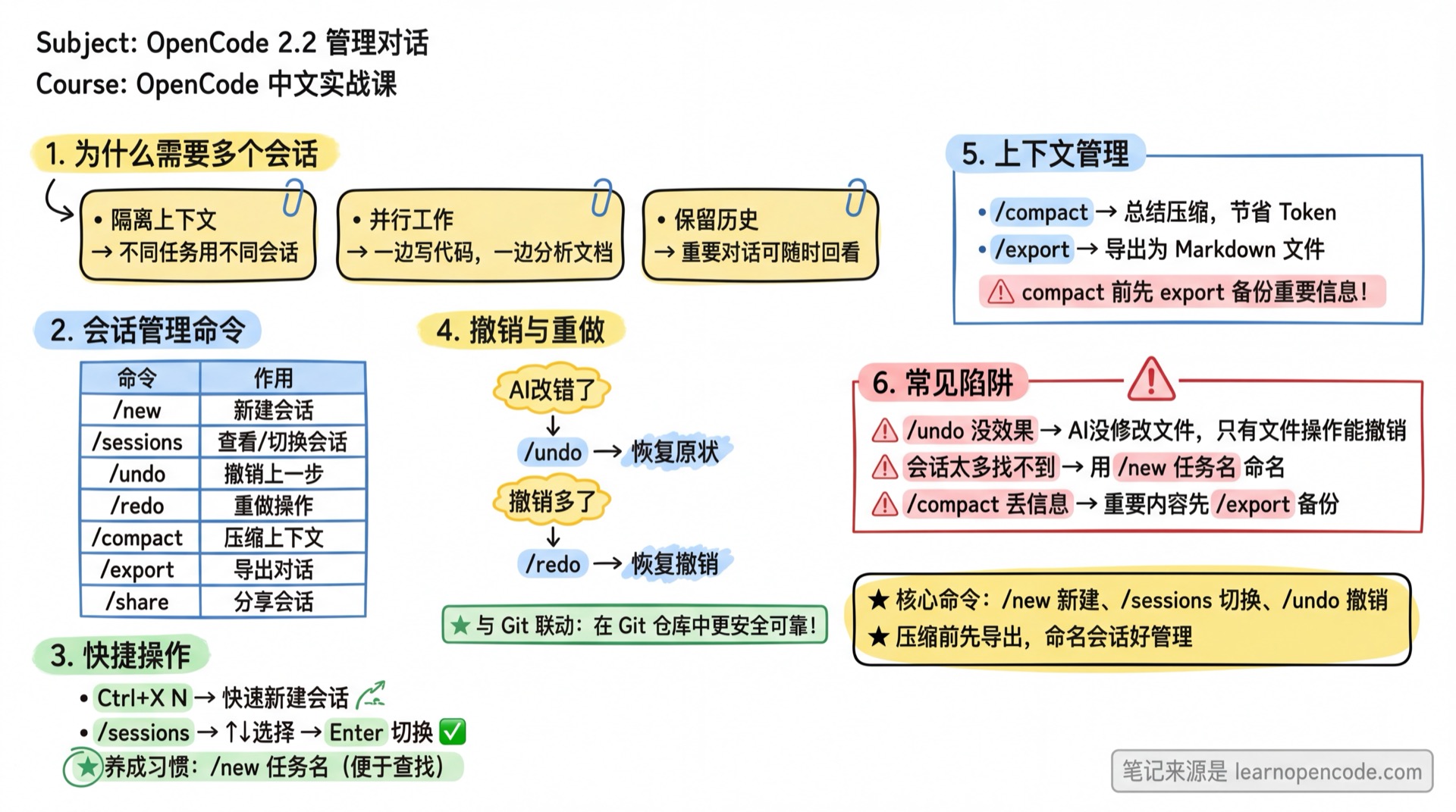
What You'll Be Able to Do
- Create and switch between multiple sessions
- Undo incorrect AI operations
- Export conversation history (Markdown and JSON formats)
- Import sessions from files or share links
- Fork a session to branch out from a specific point
- Compress long context
Your Current Struggles
- Conversations getting too long, AI starts confusing the context
- AI made wrong code changes, don't know how to undo
- Want to save important conversations but don't know how to export
- A colleague shared a session link, don't know how to import it locally
- Want to try different directions from a point in conversation without losing progress
When to Use This
- When you need to: Work on multiple different tasks simultaneously
- And you don't want: AI to mix unrelated contexts together
🎒 Before You Start
Make sure you've completed the following:
- [ ] Completed 2.1 Interface and Basic Operations
- [ ] Have an active conversation in progress
Core Concepts
Why Multiple Sessions?
- Context Isolation: Different tasks use different sessions, avoiding AI confusion
- Parallel Work: Let AI write code in one session while analyzing docs in another
- History Preservation: Keep important conversations, review anytime
Where Are Sessions Stored?
OpenCode stores sessions, messages, and message parts in SQLite. By default, the database is named opencode.db in OpenCode's data directory:
~/.local/share/opencode/opencode.dbPath Explanation
This example uses the Linux XDG data directory. The actual location depends on your operating system and environment. Sessions in the database remain associated with their respective projects; do not edit the database manually.
Lifecycle of a Session
A session goes through these stages from creation to end:
Create → Active Conversation → Compact (auto-triggered when context too long) → Archive/DeleteMost of the time you don't need to worry about this—OpenCode handles it automatically. Just know: conversations get automatically compressed when too long (see 5.20 Context Compaction), and unused sessions can be deleted.
Session Management Commands Overview
| Command | Purpose |
|---|---|
/new | Create new session |
/sessions | View and switch sessions |
/undo | Undo last operation |
/redo | Redo undone operation |
/compact | Compress context |
/export | Export conversation history |
/share | Share session (generate link) |
opencode import | Import session from file or URL (CLI command) |
opencode export | Export session as JSON (CLI command) |
Follow Along
Step 1: Create a New Session
Why
When starting a new task, use a new session to avoid interference from previous context.
Enter:
/newOr use shortcut: Ctrl+X N
You should see: Interface clears, entering a new session
Step 2: Chat in the New Session
Why
Give the new session some content for easier switching later.
Enter:
Hello, this is the second sessionStep 3: View and Switch Sessions
Why
Learn to switch between multiple sessions.
Enter:
/sessionsYou should see: Session list containing your two sessions
Use ↑ ↓ to select, press Enter to switch.
Step 4: Test Undo Functionality
Why
AI might make mistakes—undo helps you recover.
⚠️ Prerequisites
/undo to revert file operations (create, modify, delete files) requires the project to be a Git repository.
| Project Type | Undo File Operations | Undo Conversation Record |
|---|---|---|
| Git project | ✅ Files will be restored | ✅ |
| Non-Git project | ❌ Files won't change | ✅ |
Please run the test below in a Git project. If current directory is not a Git repo, run git init first.
First, let AI perform an operation (like creating a file):
Create a test.txt file with content "hello"Then undo:
/undoYou should see (Git project):
- File deleted, restored to pre-operation state
- Interface shows undo confirmation
You should see (Non-Git project):
- Conversation record undone
- ⚠️ File will NOT be deleted (no Git snapshot)
Step 5: Compress Long Context
Why
Long conversations consume tokens—compression saves costs.
Enter:
/compactYou should see: AI summarizes previous conversation, then cleans up old messages
Step 6: Export Conversation History
Why
Save important conversations for future reference.
Enter:
/exportYou should see: Conversation exported as a Markdown file
Step 7: Export and Import Sessions via CLI
Why
The /export in TUI exports Markdown format, suitable for reading. But if you want to backup complete data or restore sessions on another machine, use CLI commands to export JSON format.
Export:
# Interactively select session to export
opencode export

# Export specific session ID, redirect to file
opencode export session_abc123 > backup.json
When not specifying a session ID, a list pops up for selection:
Export session
◇ Select session to export
│   Fix authentication bug • 2026-02-14 10:30 • a1b2c3d4
│   Add new API endpoint • 2026-02-13 15:20 • e5f6g7h8
└ Update documentation • 2026-02-12 09:00 • i9j0k1l2Import:
# Import from local file
opencode import backup.json
You should see: Imported session: session_abc123
After import, use /sessions to see the restored session.
Step 8: Import Session from Share Link
Why
A colleague shared an OpenCode session link, and you want to continue that conversation locally.
opencode import https://opncd.ai/share/abc123💡 URL Format
The default share link format is https://opncd.ai/share/<slug>. Enterprise users may have different domains depending on enterprise.url configuration. Incorrect URL format will show an error.
Step 9: Fork a Session
Why
Sometimes you want to "branch out" from a point in the conversation to try different directions without losing the original. Fork does exactly that.
Fork copies all history messages from the current session and creates a new session. The new session's title gets a (fork #1) suffix, subsequent forks increment to (fork #2), (fork #3)...
How to Use:
Fork has no default shortcut. You can bind one in your project's tui.json or tui.jsonc:
{
  "$schema": "https://opencode.ai/tui.json",
  "keybinds": {
    "session_fork": "<leader>f"
  }
}
Keybindings belong in the separate TUI configuration, not in the main opencode.json / opencode.jsonc. See the v1.18.22 TUI keybinding schema for the source definition.
After configuration, press Ctrl+X f to fork the current session.
You should see: New session appears with title like Original Title (fork #1)
Checklist ✅
Must pass all to continue
- [ ]
/newcreates a new session - [ ]
/sessionsshows session list and allows switching - [ ]
/undoreverts AI operations (Git projects can revert files) - [ ]
/exportexports conversations - [ ]
opencode exportexports complete session data in JSON format - [ ]
opencode importimports sessions from files
Common Pitfalls
| Issue | Cause | Solution |
|---|---|---|
/undo didn't restore files | Current directory is not a Git repo | Switch to a Git project, or run git init first |
/undo reverted conversation but file still exists | Non-Git projects don't support file undo | This is expected behavior—only conversation record is undone |
| Too many sessions, can't find one | Session names are all defaults | Develop habit of using /new task-name to name sessions |
Lost important info after /compact | Compression deletes detailed conversation | Backup important info with /export first |
opencode import failed | Invalid JSON format | Can only import files exported by opencode export |
| Share URL import failed | Invalid URL format | Format must be https://opncd.ai/share/<slug> |
Summary
You learned:
- Use
/newto create sessions - Use
/sessionsto switch sessions - Use
/undo/redoto undo and redo - Use
/compactto compress context - Use
/exportto export conversations (Markdown format) - Use
opencode export/opencode importto backup and restore complete sessions (JSON format) - Import sessions from share links:
opencode import https://opncd.ai/share/xxx - Use Fork to branch out from current conversation
Next Lesson Preview
Next we'll learn 2.3 Recommended Shortcuts.
You'll learn:
- Leader key mechanism (Ctrl+X prefix)
- 15 most practical shortcuts
- Readline-style shortcuts for programmers