

Connect a Model: Your First Conversation
📝 Lesson Notes
Key takeaways from this lesson:
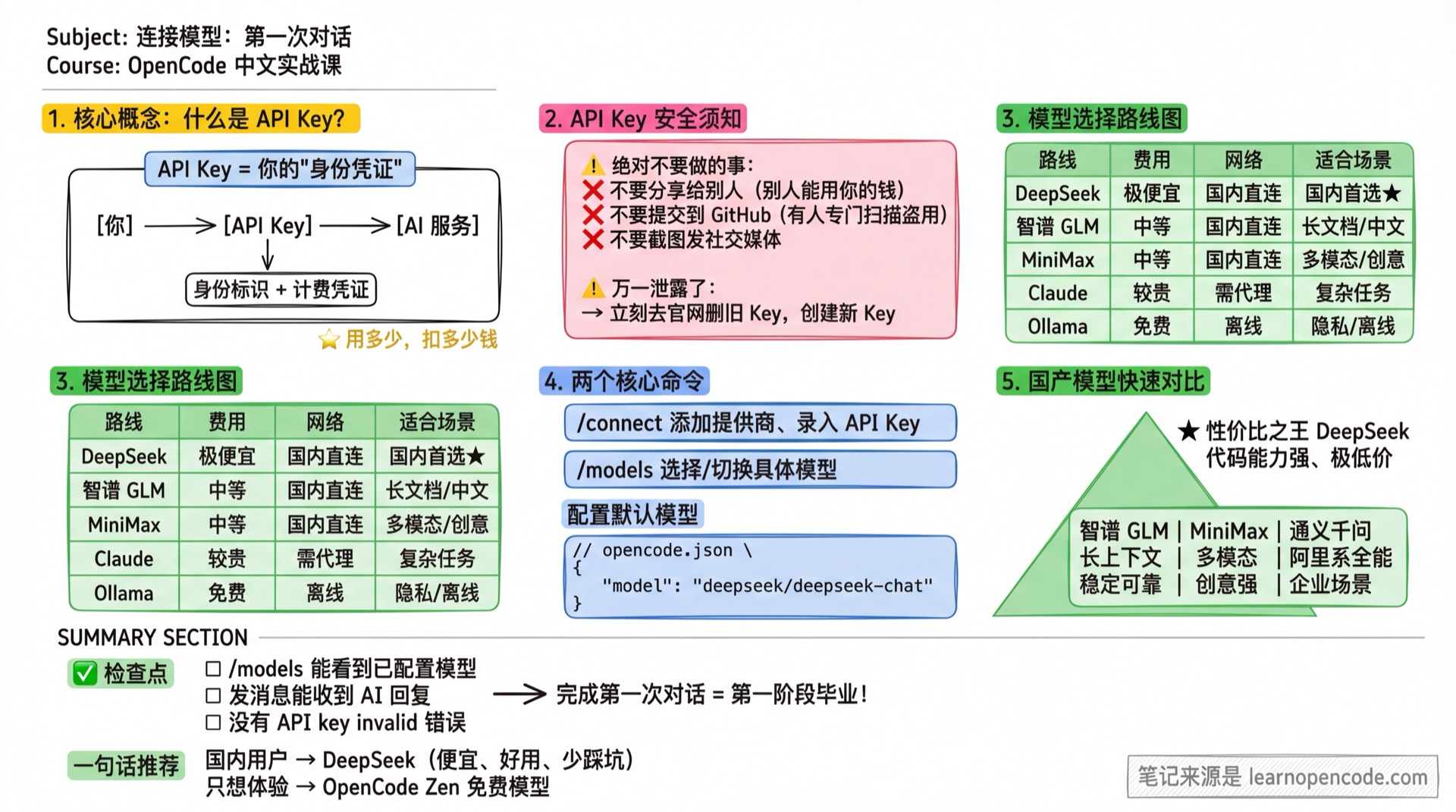
This is the Finish Line of Stage 1
After this lesson, you'll be talking to AI.
The previous three lessons were preparation. This lesson is where you see results.
What You'll Be Able to Do
- Understand what an API Key is (not just "know about it" — truly understand it)
- Successfully configure at least one model provider
- Send your first message and see the AI respond
- Know how to choose the right model for your needs
🎒 Before You Start
Make sure you've completed:
- [ ] Completed 1.2 Installation,
opencode --versionshows a version number - [ ] If you need network configuration, reviewed 1.3 Network Setup
First, Let's Make a Decision: Which Provider?
🎯 Recommended for Most Users: Claude
Why Claude?
- Top-tier reasoning: Excellent at complex tasks, code review, and nuanced understanding
- Large context window: Handle entire codebases in a single conversation
- Strong coding ability: Great at writing, refactoring, and explaining code
- Clean output: Well-structured responses with minimal hallucinations
👉 Head to 1.4e Connect Claude
- Want to start free: OpenCode Zen Free Models to try at zero cost
If you have specific needs, here are other options:
| Option | Cost/Barrier | Network | Best For | Guide |
|---|---|---|---|---|
| Claude (Recommended) | $$ | Direct or proxy | Complex tasks, coding projects | 1.4e Connect Claude |
| OpenAI (GPT / Codex) | $$ | Usually direct | General purpose, versatile | 1.4h Connect OpenAI |
| OpenCode Zen Free Models | Free | Usually direct | Zero cost to get started | 1.4a Free Models |
| Ollama Local Models | Free | Offline | Privacy-sensitive, offline use | 1.4g Connect Ollama |
| DeepSeek | Very cheap | Direct | Budget-conscious, strong coding | 1.4b Connect DeepSeek |
| Third-party Relay | Varies | Varies | Have baseURL + key | 1.4f Third-party Relay |
| GitHub Copilot | Subscription needed | Direct | Reuse Copilot subscription | 1.4j GitHub Copilot |
Core Concept: What is an API Key?
Before configuring, let's understand one concept.
What is an API Key
Simply put: An API Key is your "identity credential" for accessing AI services.
More precisely:
- AI companies (Anthropic, OpenAI, DeepSeek, etc.) provide AI services
- You want to use these services, so you need an identity
- The API Key is that identity
- It's also used for billing (pay for what you use)
API Key Safety
Important: Protect Your Key
- Don't share it: Anyone with your Key can use your account credits
- Don't commit to GitHub: Bots scan GitHub to steal keys
- Don't post screenshots: You know why
If leaked, immediately go to the provider's website, delete the old Key, and create a new one.
Two Ways to Configure
OpenCode offers two ways to configure model providers:
| Method | When to Use | Command |
|---|---|---|
| Inside TUI | Configure after launching OpenCode | /connect |
| Terminal CLI | Configure before launching OpenCode | opencode auth login |
Both methods work the same way. Choose whichever you prefer.
Method 1: Use /connect Inside TUI
In the OpenCode interface, type:
/connectA provider selection dialog will appear. Follow the prompts.
Method 2: Use opencode auth login in Terminal
Before launching OpenCode, run in your terminal:
opencode auth loginYou'll see a provider list:
? Select provider
❯ OpenCode (recommended)
  Anthropic (Claude Max or API key)
  GitHub Copilot (ChatGPT Plus/Pro or API key)
  OpenAI (ChatGPT Plus/Pro or API key)
  Google
  ...
Select one and follow the prompts to enter your API Key or complete OAuth.
View Configured Providers
opencode auth list
# or shorthand
opencode auth ls
You'll see:
Credentials ~/.local/share/opencode/auth.json
√ OpenCode api

Environment
√ OpenCode OPENCODE_API_KEY
Authentication Priority
OpenCode looks for authentication in this order:
- Environment variables (e.g.,
ANTHROPIC_API_KEY,OPENAI_API_KEY) - auth.json file (
~/.local/share/opencode/auth.json) - Configuration file authentication settings
Note
Credentials are stored at: ~/.local/share/opencode/auth.json (unified across all platforms, following XDG spec)
Switch Models
After configuring multiple models, use the /models command in TUI to switch anytime:
/modelsUse ↑ ↓ to select, press Enter to confirm.
Set Default Model
Configure the model field in opencode.json to set a default model:
{
  "model": "anthropic/claude-sonnet-4"
}
Checklist ✅
After completing any subsection, you should be able to:
- [ ] Type
/modelsand see configured models - [ ] Send a message and receive an AI response
- [ ] No errors (like
API key invalidorconnection error)
What's Next?
Once you've successfully completed your first conversation, you can move to Stage 2:
Stuck?
Having trouble connecting your model? Join the community to chat with other learners and get real-time help.